
HOW TO
Extract bathymetric point data along polyline feature in ArcGIS Pro and export to Excel
Summary
In ArcGIS Pro, bathymetry is the measurement and representation of seafloor depth, stored as rasters or point datasets, that can be visualized and analyzed together with other spatial data. It is useful in planning safe shipping routes by identifying shallow or hazardous areas and analyzing seabed conditions for pipelines. This article discusses the workflow to extract bathymetry point data along a polyline feature in ArcGIS Pro and export it to Excel.
Procedure
- Open the ArcGIS Pro project with the bathymetric point data and the polyline feature layer.
Note: For instructions to find and use the geoprocessing tool, refer to ArcGIS Pro: Find a geoprocessing tool.
- Select the desired polyline feature using the Select Layer By Attribute tool. Refer to ArcGIS Pro: Select Layer By Attribute (Data Management) for more information.
- In the Select Layer By Attribute pane, for Input Rows, click the drop-down arrow and select the polyline feature layer.
- For Selection Type, click the drop-down arrow and select New Selection.
- For Expression, define a clause that selects the specific polyline features to analyze based on attributes.
- Click Run.
- Export the selected polyline feature using the Export Features tool. Refer to ArcGIS Pro: Export Features for more information.
- Create a zone around the exported polyline feature to capture nearby depth points using the Buffer tool.
- In the Buffer pane, for Input Features, click the drop-down arrow and select the output from step 3.
- For Distance [value or field], specify the distance to be buffered.
- Click Run.
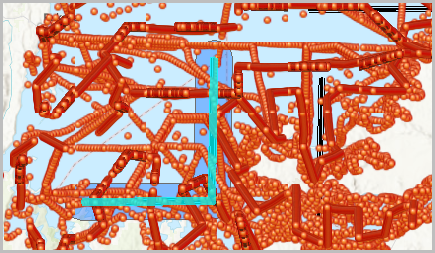
- Extract the bathymetry point data that falls inside the buffer using the Select Layer By Location tool.
- In the Select Layer By Location pane, for Input Features, click the drop-down arrow and select the bathymetry point data layer.
- For Relationship, click the drop-down arrow and select Intersect.
- For Selecting Features, click the drop-down arrow and select the output from step 4.
- For Search Distance, specify the distance to be searched.
- For Selection Type, click the drop-down arrow and select New selection.
- Click Run.
- Export the selected bathymetry point data as a permanent dataset using the Export Features tool. For more information refer to ArcGIS Pro: Export Features.
Note:
Toggle Use the selected records on to select only the point data within the buffer.
- Calculate the X and Y coordinates of the exported bathymetry point data using the Calculate Geometry Attributes tool.
- In the Calculate Geometry Attributes pane, for Input Features, click the drop-down arrow and select the output from step 6.
- Under Geometry Attributes, select the required field for Field (Existing or New), and the specific properties for Property.
- Select Current Map [Map] from the Coordinate System drop-down arrow.
- Click Run.
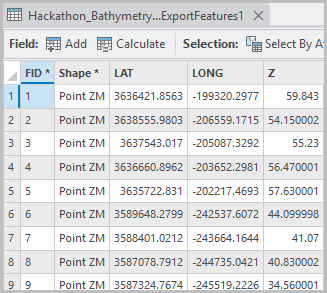
The attribute table below shows the exported bathymetry point data with their corresponding X and Y coordinates.
- Export the table with bathymetry values and coordinates to Microsoft Excel using the Table To Excel tool.
- In the Table To Excel geoprocessing pane, for Input Table, click the drop-down arrow and select the output from step 6.
- Click Run.
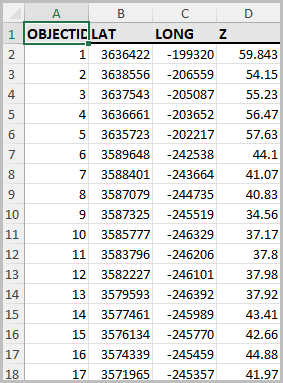
- Navigate to the specified folder location in Windows. The attribute table is exported and can be opened in the Microsoft Excel Worksheet type.
Article ID: 000037728
- ArcGIS Pro
- ArcGIS Bathymetry
Get support with AI
Resolve your issue quickly with the Esri Support AI Chatbot.


Related Information
Discover more on this topic

Search for related information

Find training related to this topic

Explore ideas and give feedback
Get help from ArcGIS experts
Start chatting now