
HOW TO
Download and install an Esri software ISO file
Summary
An ISO file or image acts as a virtual copy of the installation DVD. ISO files for the latest versions of Esri software are available for download from the Downloads page in My Esri (my.esri.com).
After the ISO file is downloaded, it can be used as a virtual disk via an ISO image file extractor program (such as 7-Zip or IsoBuster) or an ISO mounter program (such as Virtual CloneDrive).
A physical backup copy of the software can be created using a DVD authoring program and DVD burner to burn the ISO file.
Procedure
The steps below describe how to download and install Esri software ISO files from My Esri.
- In any web browser, go to My Esri.
- Log in to your Esri account. If already logged in, proceed to the next step.
- From the My Esri Dashboard, click the My Organizations tab.

- Under My Organizations, click Downloads.
Note:
The Downloads sub-tab is available if the Esri account is connected to an organization. If the account is not connected to an organization, click Request permission to your organization from the My Organizations tab to notify the organization administrator.

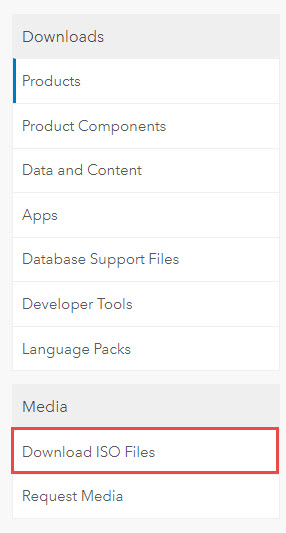
- On the left-hand panel, under Media, click Download ISO Files.
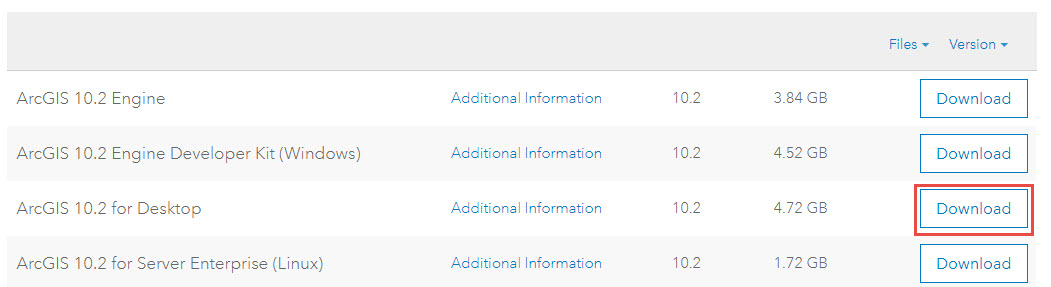
- In the list of available products, click the Download button for the version of the software.
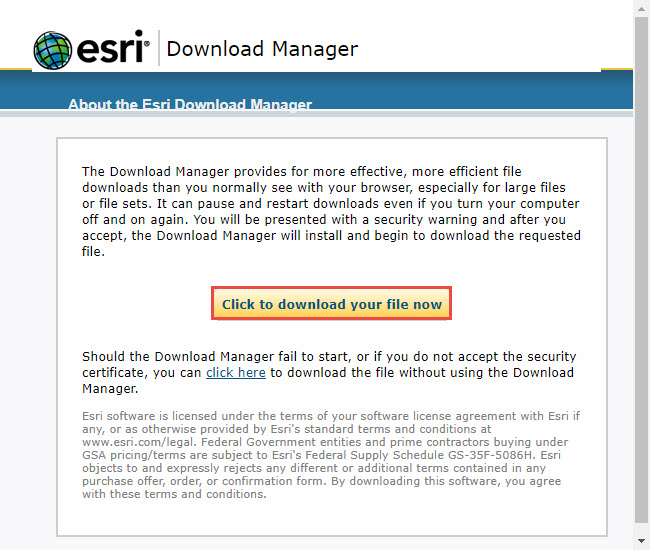
- The Esri Download Manager dialog window opens. Click the Click to download your file now button to begin the download process. Set a download destination for the file, and download the file.
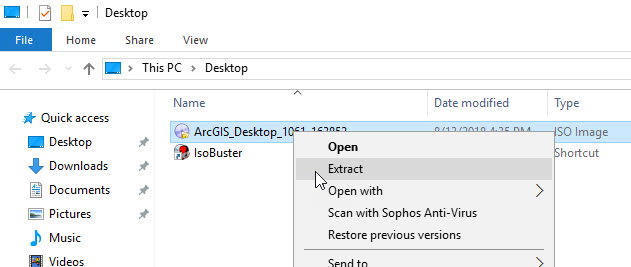
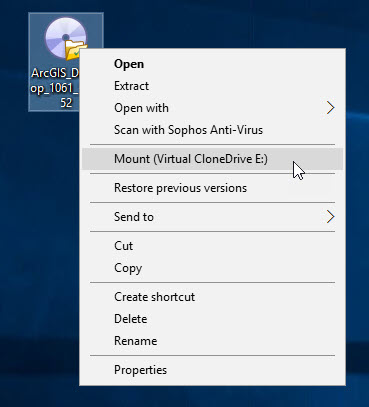
- Locate the downloaded ISO file. Depending on the software available, extract the file to a designated folder, or mount the file to a virtual drive.
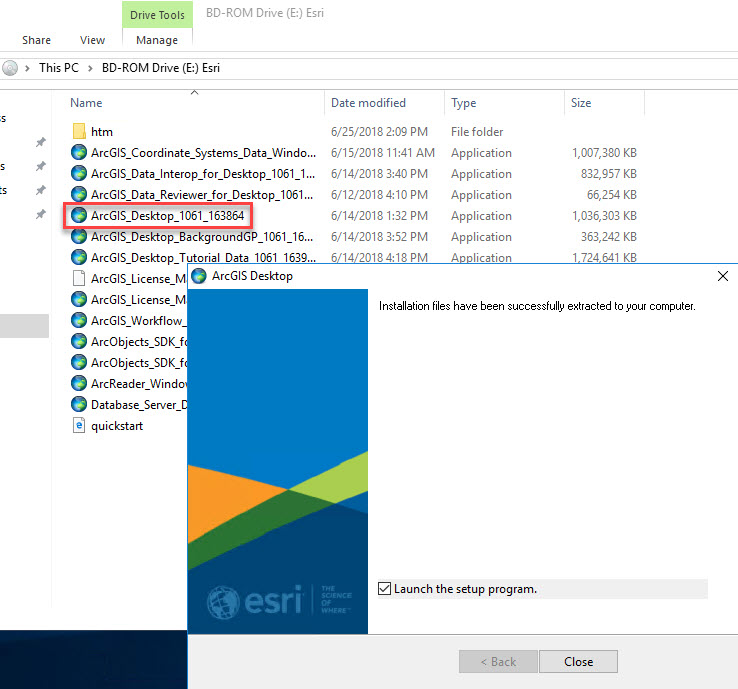
- Double-click the installation file. If the ISO file is mounted, the data extracts to a designated folder. Launch the setup program and follow the steps to install the software. Refer to the installation guide of the respective Esri software for more information.
Note:
Installation guides are found for the respective Esri software in Downloads > Products > View Downloads. Under the Product Components section, click Additional Information.
Article ID: 000018784
- ArcGIS Data Store
- ArcGIS Pro
- Portal for ArcGIS
- ArcGIS Enterprise
Get support with AI
Resolve your issue quickly with the Esri Support AI Chatbot.


Related Information
Discover more on this topic

Search for related information

Find training related to this topic

Explore ideas and give feedback
Get help from ArcGIS experts
Start chatting now