
HOW TO
Display ArcGIS Experience Builder map as thumbnail in the ArcGIS Enterprise Site Gallery card
Summary
In ArcGIS Enterprise Sites, the Gallery card displays multiple items simultaneously with thumbnails showing previews of app content. It can also be customized to display only specific or selected types of items. When displaying ArcGIS apps in the Gallery card, each item's thumbnail image is inherited from its item details page. It cannot be configured separately.
Displaying a map preview from the ArcGIS Experience Builder app is often preferred over the default thumbnail images. This article outlines the workflow to set the map view as the app's thumbnail in the Gallery card.
Procedure
- Log in to the ArcGIS Enterprise portal.
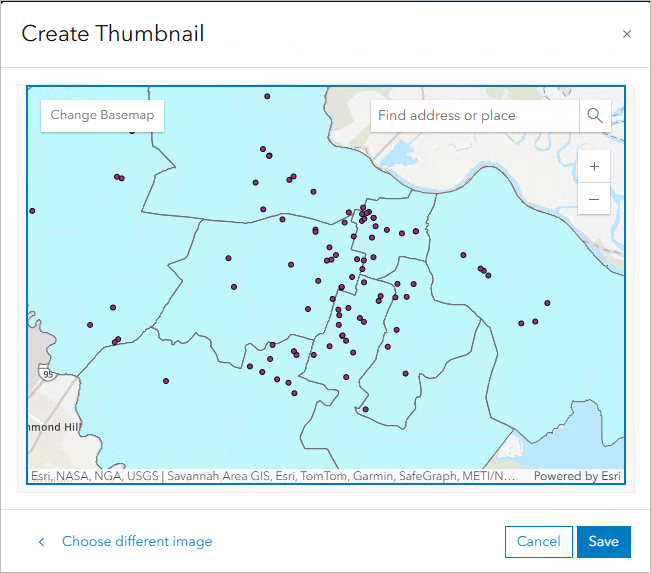
- Open the item details page of the ArcGIS Experience Builder experience and set the map as the thumbnail using the Create thumbnail from map option. Refer to the Set a thumbnail image section in Portal for ArcGIS: Configure details for instructions.
- Create a new ArcGIS Enterprise site. Refer to ArcGIS Enterprise Sites: Create a site for instructions.
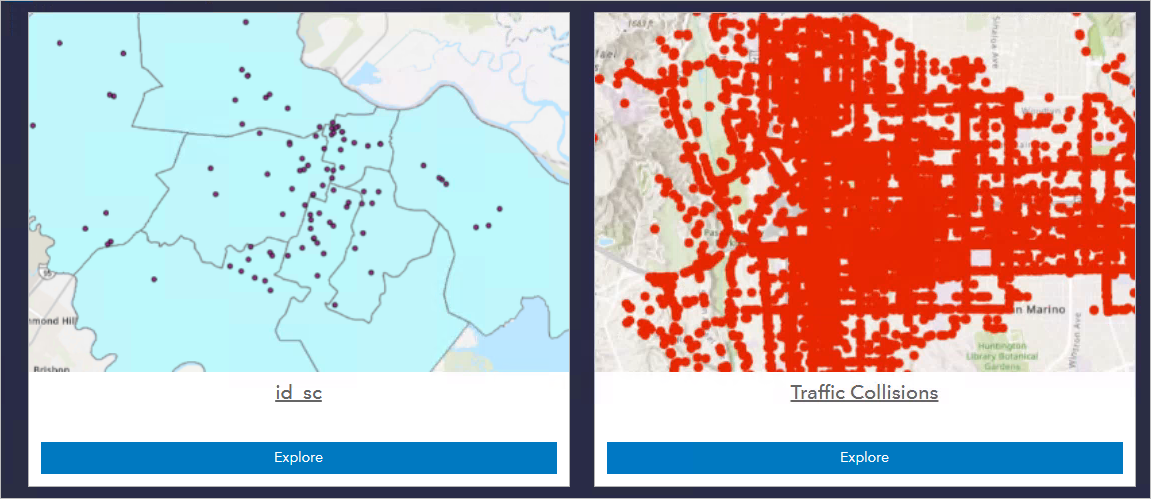
- Add the Gallery card to the layout and configure the content to display the web apps. Refer to ArcGIS Enterprise Sites: Create a gallery of content for instructions. In this example, the Apps content type under Dynamic is selected to be displayed on the site.
Note:
For existing sites, remove and re-add the Gallery card to the layout after updating the item thumbnails to ensure the new images are displayed.
- Click Save.
The map views are set as the thumbnails of the ArcGIS Experience Builder apps in the Gallery card.
Article ID: 000036498
- Portal for ArcGIS
- ArcGIS Enterprise
- ArcGIS Experience Builder
Get support with AI
Resolve your issue quickly with the Esri Support AI Chatbot.


Related Information
Discover more on this topic

Search for related information

Find training related to this topic

Explore ideas and give feedback
Get help from ArcGIS experts
Start chatting now