
HOW TO
Create the mean center of a group of point features within a polygon in ArcGIS Pro
Summary
In ArcGIS Pro, a map displaying numerous point features provides detailed information about a region. However, in some instances, a lot of point features may add extra noise to the map, making it difficult to observe any trends. Therefore, it is helpful to visually improve a map by displaying only the mean center of a group of point features within a polygon.

This article describes the workflow to create the mean center of a group of point features within a polygon using the Pairwise Intersect tool to intersect the point and polygon feature layers and the Mean Center tools available in ArcGIS Pro.
Procedure
Note:
The Pairwise Intersect tool requires the ArcGIS Desktop Advanced license.
- Open the ArcGIS Pro project.
- In the Geoprocessing pane, search for and click Pairwise Intersect (Analysis Tools).
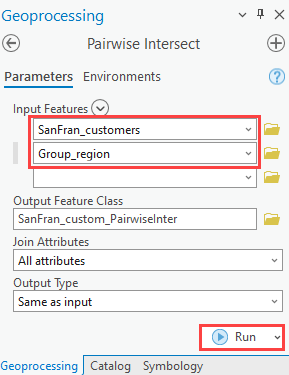
- Configure the parameters in the Pairwise Intersect pane.
- For Input Features, select the point and polygon feature layers from the drop-down list. In this example, SanFran_customers and Group_region are selected.
- Leave the other parameters as default and click Run.
- In the Geoprocessing pane, search for and select Mean Center (Spatial Statistics Tools).
- Configure the parameters in the Mean Center pane.
- For Input Feature Class, select the feature layer created in Step 3. In this example, SanFran_custom_PairwiseInter is selected.
- For Case Field, select the polygon ID field to group the point features by the polygon ID. In this example, the field is 'ID'.
- Leave the other parameters as default and click Run.

The image below shows the mean centers of the groups of point features within the polygons are symbolized as red dots.

Article ID: 000029645
- ArcGIS Pro 3 1
- ArcGIS Pro 3 0
- ArcGIS Pro 2 8 x
- ArcGIS Pro 2 x
Get support with AI
Resolve your issue quickly with the Esri Support AI Chatbot.


Related Information
Discover more on this topic

Search for related information

Find training related to this topic

Explore ideas and give feedback
Get help from ArcGIS experts
Start chatting now