
HOW TO
Create cross-street attributes from intersection points in ArcGIS Pro
Summary
Mapping intersection points with their corresponding street names is useful in crash analysis, understanding traffic patterns, and improving road safety. This article describes the workflow to convert a road centerline feature layer into intersection point features, each populated with the intersecting street names separated by a delimiter.
Procedure
Note:
For instructions to find and use the geoprocessing tool, refer to ArcGIS Pro: Find a geoprocessing tool.
- Open the ArcGIS Pro project containing the road centerline feature layer.
- Create intersection points from the road centerlines. Refer to How To: Create points on line intersections in ArcGIS Pro for instructions.
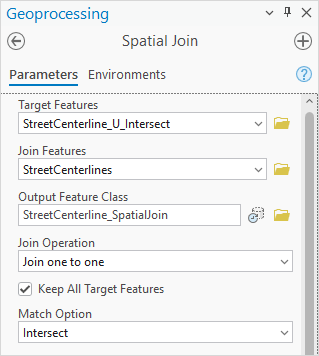
- Perform a spatial join to add street names to the intersection points using the Spatial Join tool.
- In the Spatial Join pane, for Target Features, select the intersection point feature layer created in Step 2 from the drop-down list. In this example, the name of the layer is StreetCenterline_U_Intersect.
- For Join Features, select the road centerline feature layer from the drop-down list. In this example, the name of the layer is StreetCenterlines.
- For Output Feature Class, specify a name. In this example, the name is StreetCenterline_SpatialJoin.
- Expand the Fields parameter and click Edit.
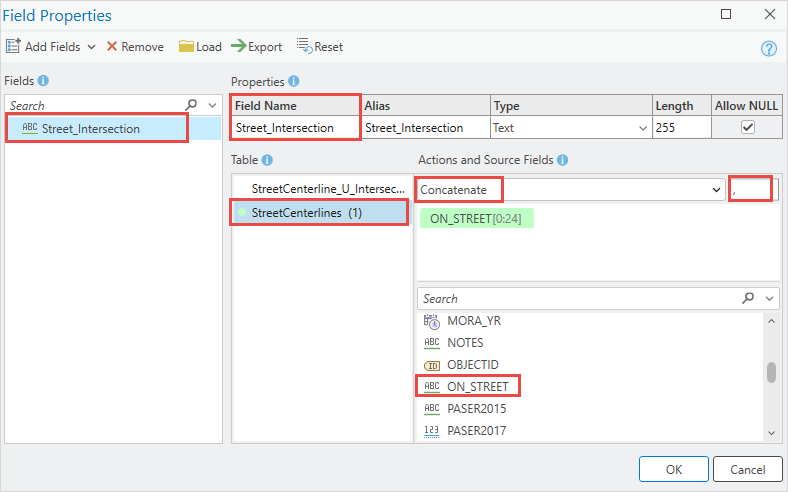
- In the Field Properties dialog box, click the Add Fields drop-down arrow and select Add Empty Field.
- Under Properties, for Field Name, specify a name for the field to populate the intersection names. In this example, the field name is Street_Intersection.
- Under Table, select the road centerline feature layer and select the field containing the street name attribute. In this example, the field is ON_STREET.
- Under Actions and Source Fields, select Concatenate from the drop-down list and specify a delimiter. In this example, a space is included after the comma.
- Under Fields, hover over a field name and click Remove. Repeat this step to delete all fields except the newly created field.
- Click OK.
- In the in the Spatial Join pane, click Run.
- Remove duplicate intersection points using the Delete Identical tool.
- In the Delete Identical pane, for Input Dataset, select the feature layer created in Step 3 from the drop-down list.
- For Fields, select the Shape field from the drop-down list to identify features located at the same coordinates.
- Click Run.
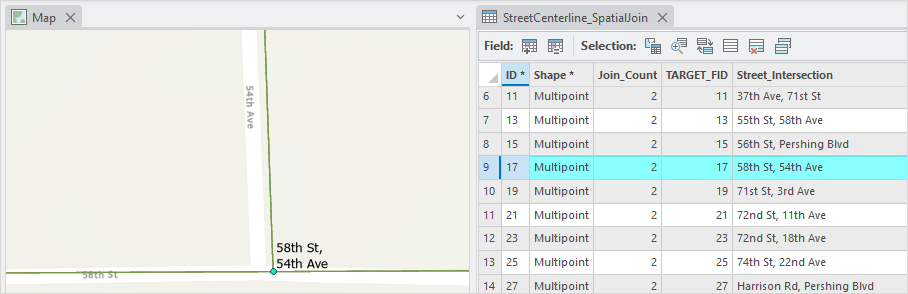
The map below shows the intersection of 58th St and 54th Ave, as listed in the Street_Intersection field.
Article ID: 000035190
- ArcGIS Pro
Get support with AI
Resolve your issue quickly with the Esri Support AI Chatbot.


Related Information
Discover more on this topic

Search for related information

Find training related to this topic

Explore ideas and give feedback
Get help from ArcGIS experts
Start chatting now