
HOW TO
Configure dynamic submission page based on survey responses in ArcGIS Survey123 Connect
Summary
When a survey is submitted, ArcGIS Survey123 displays the default thank-you screen to acknowledge the submission. A dynamic submission page can be configured to present customized content or confirmation messages based on survey responses, providing targeted feedback and guiding respondents to the appropriate next steps after form submission.
This article describes the workflow to configure a dynamic submission page based on survey responses in ArcGIS Survey123 Connect.
Procedure
- In ArcGIS Survey123 Connect, open the survey's XLSForm.
- Configure the choice list.
- In the choices worksheet, under list_name, specify the name of the choice list. In this example, the list name is attend.
- In the name and label cells, input the answer choices.

- Create and configure a choice question.
- In the survey worksheet, under the type column, click the drop-down arrow and select select_one list_name.
- Replace list_name with the list name specified in the choices worksheet in Step 2(a).
- Specify a value in the name and label columns.
- Configure a dynamic submission page.
- In the survey worksheet, under the type column, click the drop-down arrow and select note.
- In the name and label cells, type note.
- In the appearance column, select hidden.
- In the calculation column, specify the following expression. Replace <choice_name> with the name of the choice question, <choice> with the preferred choice, <message_if_selected> with the message when the choice is selected, and <message_if_not_selected> with the message when the choice is not selected.
if(${<choice_name>}='<choice>','<message_if_selected >', '<message_if_not_selected >')
Note:
The calculation is case-sensitive; therefore, the preferred choice value must match the name column in the choices worksheet and not the label column. If the choice name does not match, the message specified in <message_if_not_selected> is returned regardless of the selection.
The following is an example of the expression.
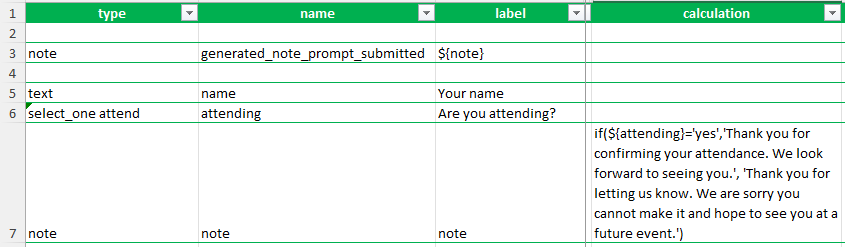
if(${attending}='yes','Thank you for confirming your attendance. We look forward to seeing you.', 'Thank you for letting us know. We are sorry you cannot make it and hope to see you at a future event.')
- In the bind::esri:fieldType column, select null.
- Populate the submission page with the dynamic response.
- In the survey worksheet, under the type column, click the drop-down arrow and select note.
- In the name cell, type generated_note_prompt_submitted.
- In the label cell, specify the following expression.
${note}
- Save the XLSForm.
- Click Publish.
The image below shows the submission screen message after selecting Yes on the specified question.

Article ID: 000037784
- ArcGIS Survey123 Connect
Get support with AI
Resolve your issue quickly with the Esri Support AI Chatbot.


Related Information
Discover more on this topic

Search for related information

Find training related to this topic

Explore ideas and give feedback
Get help from ArcGIS experts
Start chatting now