
HOW TO
Auto-populate XY values in ArcGIS Field Maps
Summary
In ArcGIS Field Maps, auto-populating XY values (longitude and latitude) simplifies field data collection by ensuring locations are captured quickly and accurately without manual entry. This speeds up workflows and improves data reliability; minimizing errors. Additionally, storing XY values alongside the geometry provides versatility, as the coordinates can be easily shared, validated, or used in further analysis across different systems. This article describes the workflow.
Procedure
- Add new fields to the hosted feature layer to store XY values.
- Open ArcGIS Online.
- On the Content page, browse to the desired hosted feature layer, click More Options
 and select View details.
 - On the item details page, click Data.
- Add two new fields with the double data type. Refer to ArcGIS Online: Add a field for instructions. In this example, they are named 'Longitude' and 'Latitude'.
- Create and configure a form with the newly created fields.
- Launch and open the form builder in Field Maps Designer.
- In the Forms pane, select the hosted feature layer from Step 1 to be used for data collection.
- In the Form builder pane, under the Fields list, double-click or drag and drop the newly created field onto the canvas.
- Repeat Step 2(c) to add and configure the other field.
- Click Save to map.
- Populate the X and Y values in their corresponding fields using Arcade expressions. Refer to ArcGIS Field Maps: Add calculated expressions for instructions. In Step 5, copy and paste the following expression into the Arcade editor window and replace the necessary variables.
return Round(Geometry($feature).<axis>, <number of decimal place values>)
The image below shows the example of the calculated expression for the 'Latitude' field using the above expression in the 'Arcade editor' window.

The image below shows the example of the calculated expression for the 'Longitude' field using the above expression in the 'Arcade editor' window.

- Click Save to map.
- Open ArcGIS Field Maps on the mobile device and fill out the form for data collection. Refer to ArcGIS Field Maps: Fill out forms for more information.
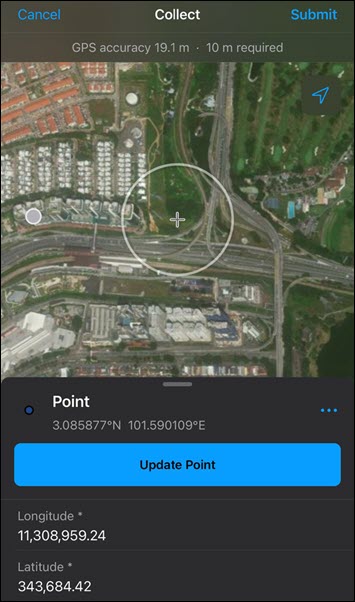
The image below shows the XY values automatically populated in the corresponding fields in ArcGIS Field Maps.
Article ID: 000037114
- ArcGIS Online
- ArcGIS Field Maps Android
- ArcGIS Field Maps iOS
- ArcGIS Field Maps Designer
Get support with AI
Resolve your issue quickly with the Esri Support AI Chatbot.


Related Information
Discover more on this topic

Search for related information

Find training related to this topic

Explore ideas and give feedback
Get help from ArcGIS experts
Start chatting now