
HOW TO
Auto-populate a geopoint location from manually entered coordinates in the ArcGIS Survey123 field app
Summary
Generating a geopoint location from manually entered coordinate values is more practical than relying on the device’s GPS location in the ArcGIS Survey123 field app especially when collecting data in areas with poor GPS reception. For example, when indoors or under dense canopies, or when the exact coordinates are available from other sources such as maps, spreadsheets, or previous surveys. This article provides the workflow.
Procedure
- Open ArcGIS Survey123 Connect.
- Create a new survey.
- On the My Survey Designs tab, click + New survey.
- In the New Survey window, select Advanced Template and click Create survey.
- Add two decimal questions to serve as the coordinate fields (latitude and longitude) in the form.
- In the XLSForm spreadsheet, click the survey tab and delete any sample text in the cells.
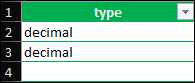
- In the type column, click the empty cell in row 2, and select decimal from the drop-down. Repeat the process for row 3.
- In the name column, specify a name for both rows. In this example, 'latitude' and 'longitude' are specified.
- In the label column, specify a label for each question.

- Add a geopoint question and configure an expression to populate it with the latitude and longitude values.
- In the type column, click the empty cell in row 4, and select geopoint from the drop-down.
- In the name column, specify a name.
- In the label column, specify a label.
- In the calculation column, configure the following expression and replace the placeholders (field1 and field2) with the specified name of the coordinate fields.
concat(number(${field1})," ",number(${field2}))

- Click Save
 and close the spreadsheet.
- Publish the survey.
- Click Publish
 .
. - In the Publish <survey_title> window, click Publish survey >OK.
- In the ArcGIS Survey123 field app, download and open the published survey from Step 5.
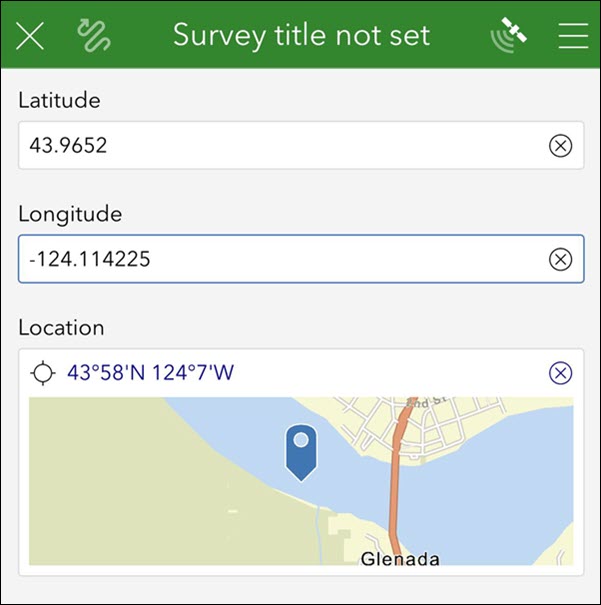
The image below shows the geopoint location automatically populated on the map from the manually entered coordinates in the ArcGIS Survey123 field app.
Article ID: 000037652
- ArcGIS Survey123
Get support with AI
Resolve your issue quickly with the Esri Support AI Chatbot.


Related Information
Discover more on this topic

Search for related information

Find training related to this topic

Explore ideas and give feedback
Get help from ArcGIS experts
Start chatting now