
Frequently asked question
Is it possible to display basemap labels on top of features in ArcGIS Pro?
ArcGIS Pro provides various types of basemaps for addition to a map from the Basemap drop-down list. Although most basemaps combine the map background and labels into one layer, some basemaps contain a separate reference layer to display labels. Basemaps containing reference and background layers are displayed in the Contents pane in two independent lists. This allows movement of the reference layer up or down, between other layers in the Contents pane, to reflect on the map.
The following is a list of ArcGIS Pro basemaps that provide reference labels in a separate reference layer:
- Imagery with Labels
- Terrain with Labels
- Light Gray Canvas
- Dark Gray Canvas
- Oceans
To display the basemap reference labels on top of features on the map, ensure the reference layer is above all other layers in the Contents pane. The image below shows the Terrain with Labels basemap with World Terrain Reference as the reference layer and World Terrain Base as the background layer.
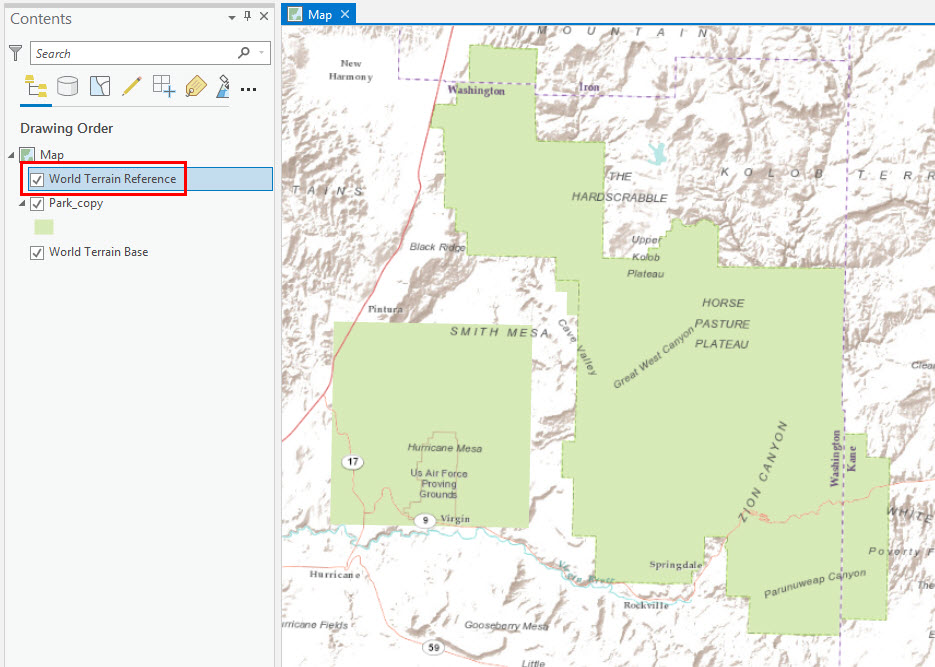
To remove the reference labels from the map, uncheck the reference layer check box in the Contents pane, or right-click the reference layer and click Remove.
Article ID: 000023247
- ArcGIS Pro 2 x
Get support with AI
Resolve your issue quickly with the Esri Support AI Chatbot.


Related Information
Discover more on this topic

Search for related information

Find training related to this topic

Explore ideas and give feedback
Get help from ArcGIS experts
Start chatting now