
ERROR
Error 030202 The signed in user does not have the privilege to create content and perform spatial analysis
Error Message
When attempting to publish route layers from ArcGIS Pro using the Share as: Route Layers tool into ArcGIS Enterprise, even when working with an administrator with all roles, fails and returns following error:
Error:
The signed in user does not have the privilege to create content and perform spatial analysis.

Cause
- The user does not have the correct privileges to perform network analysis in Portal for ArcGIS.
- The geoprocessing service for spatial analysis was running in ArcGIS Server, but it was missing the sharing API (Portal) that enables publishing the routes to the organization content.
Solution or Workaround
Set privileges for the user in organization
Even though Network Analysis tasks come with privileges under default roles, publishing route layers requires a Publisher role or higher. To proceed, follow these steps:
- Log in to ArcGIS Enterprise with administrator credentials.
- Click the Members tab and browse for the user who requires the privileges.
- Click the drop-down menu below the Role drop-down menu and select either the Publisher or higher role.
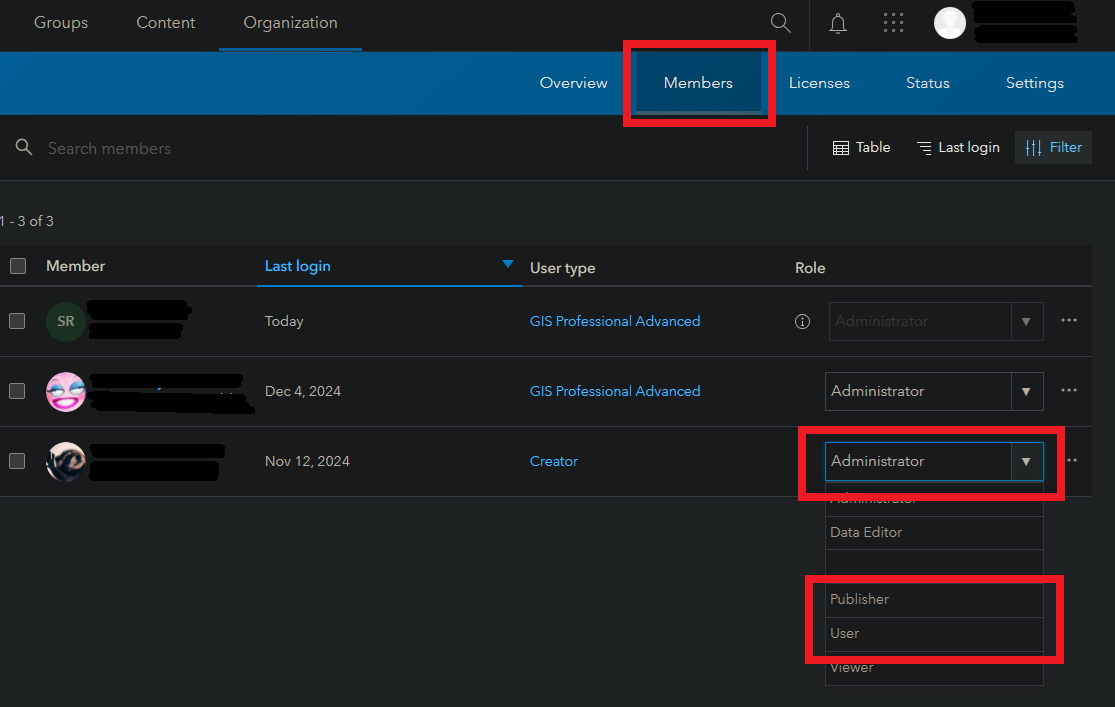
- Publish the route layers again from ArcGIS Pro. If it doesn't work try the next step:
Configure Spatial Analysis utility service
When working with ArcGIS Enterprise, validate if Portal for ArcGIS has the Spatial Analysis utility service properly configured. To do so, follow these steps:
- Navigate to the ArcGIS Portal Directory from your organization:
https://webadaptorhost.domain.com/webadaptorname/sharing/rest
- Log in using portal administrator credentials.
- Click on the Org ID.
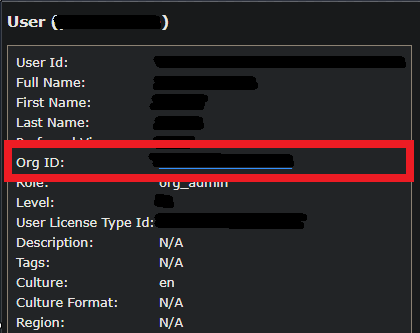
- Scroll down, and in the Supported Operations section, click Update.
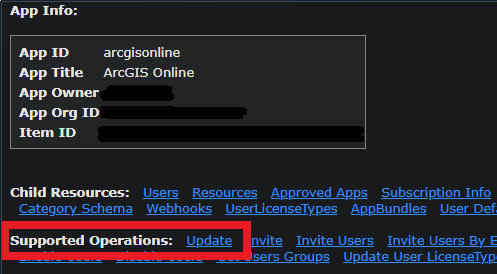
- Search for the Analysis Service and confirm if has a URL associated, if not, use the following example to populate it:
{"url":"https://webadaptorhost.domain.com/webadaptorname/rest/services/System/SpatialAnalysisTools/GPServer"}
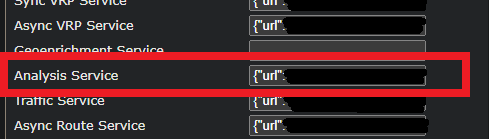
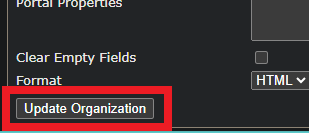
- Click Update Organization to save the changes
Note:
This service URL belongs to the SpatialAnalysisTools service managed/hosted by ArcGIS Server. This can be found in the ArcGIS REST Services Directory > services > System folder, and its URL can also be copied from there.

Article ID: 000034333
- ArcGIS Pro
- ArcGIS Network Analyst
- ArcGIS Enterprise 10 9 x
Get support with AI
Resolve your issue quickly with the Esri Support AI Chatbot.


Related Information
Discover more on this topic

Search for related information

Find training related to this topic

Explore ideas and give feedback
Get help from ArcGIS experts
Start chatting now