
PROBLEM
Enabling Semantic search in ArcGIS Pro installation fails with error, "The feature you are trying to use is on a network resource that is unavailable".
Description
Semantic search was initially released at ArcGIS Pro version 3.3 for the geoprocessing tool search. This feature allows users to find tools by describing their purpose rather than their exact names. The feature was significantly expanded in ArcGIS Pro 3.4 to include the command search box, property pages, and other application search areas. Semantic search can be enabled even after installing ArcGIS Pro.
- In the Windows Search box, search for Apps & features.
- On the Settings page, in the list of applications, click ArcGIS Pro. Click Modify. (Note: In Windows 11, search for Installed Apps. In the list of applications, for ArcGIS Pro, click the options button and click Modify.)
- Click Yes on the prompt that allows the app to make changes to your device.
- In the ArcGIS Pro Setup wizard, in the Program Maintenance panel, select Modify, and click Next.
- In the Select Features panel, click the drop-down arrow for AI Models or for any individual model, and choose the desired settings.
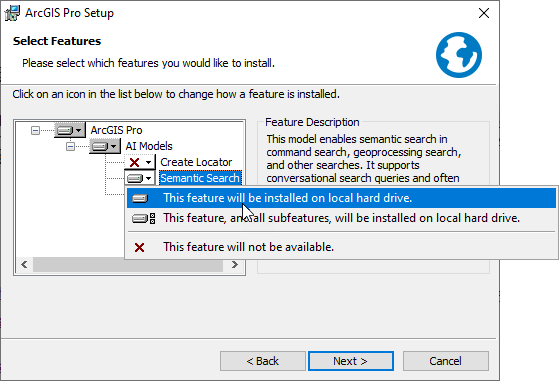
- Click Next.
- In the Ready to Modify the Program panel, click Install.
- In the ArcGIS Pro has been successfully installed panel, click Finish.
When running Step 7 of this workflow, the following error message may be encountered:
The feature you are trying to use is on a network resource that is unavailable.
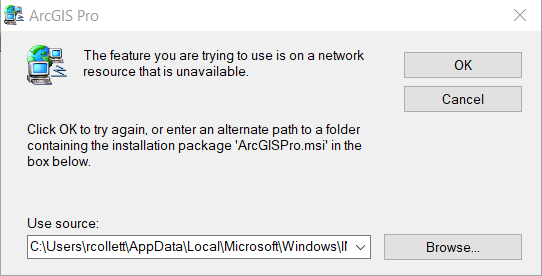
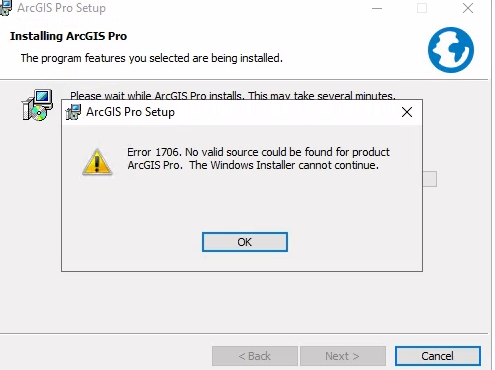
Clicking Cancel returns the following error message:
Error 1706. No valid source could be found for the product ArcGIS Pro. The Windows Installer cannot continue.
Cause
The issue is caused when the ArcGIS Pro Windows Installer Package (.msi) file is missing or located in a folder that the installer does not have access to. This issue can present when:
- ArcGIS Pro is updated within the application (From the Software Update section in the About page in ArcGIS Pro)
- The Windows Installer Package is moved or deleted after installing ArcGIS Pro 3.3 (or later)
Solution or Workaround
To resolve the issue, download the Windows Installer Package from My Esri or ArcGIS Online.
My Esri
- Log into My Esri with an account that has permissions to download software.
- Click Downloads > ArcGIS Pro.
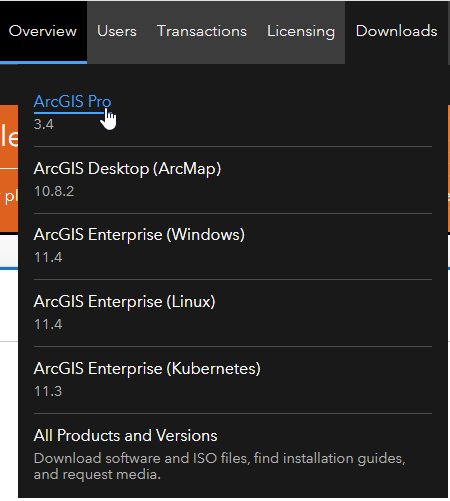
- Under Product Components, for the ArcGIS Pro item in the Files table, click the Download button.
- Once downloaded, run the downloaded Application (.exe) file to create the Windows Installer Package (.msi) on disk.
- Install Semantic search using the steps in the following documentation: Install ArcGIS Pro—ArcGIS Pro | Documentation
ArcGIS Online / Portal for ArcGIS
- Log into ArcGIS Online or your organization's ArcGIS Portal.
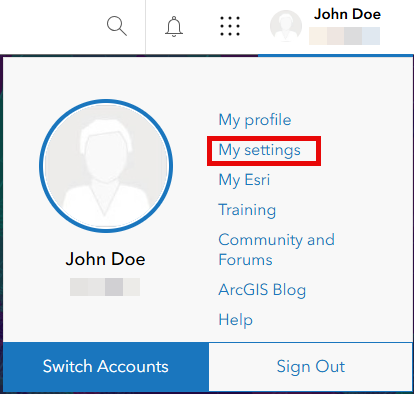
- Click the profile name in the upper right corner, as shown in the following image. Click My settings.
- On the left menu, click Licenses.
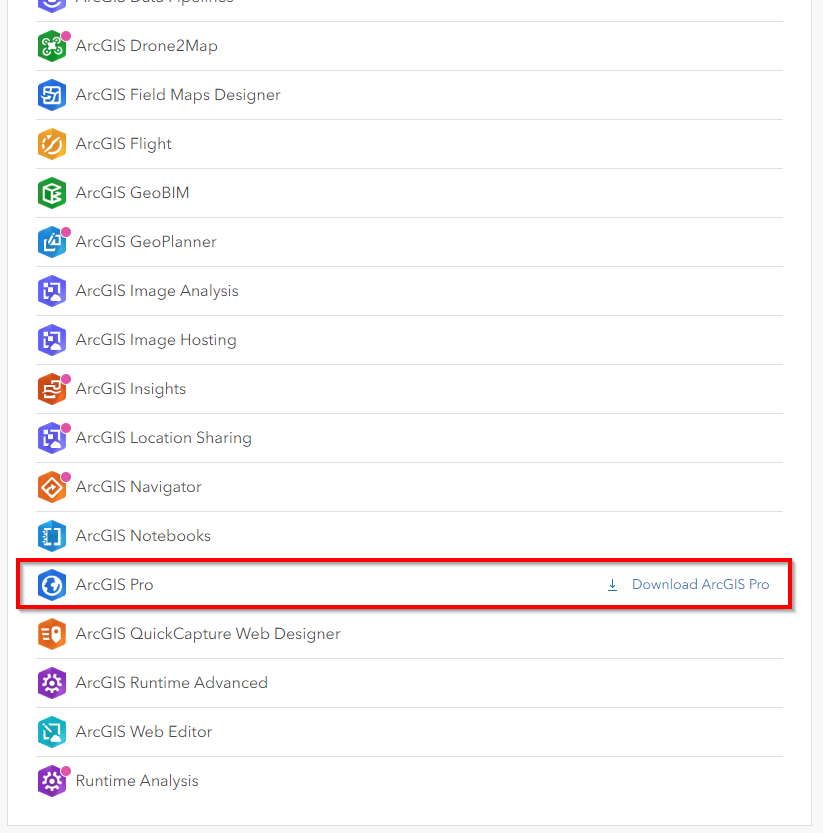
- If necessary, scroll down to ArcGIS Pro. Click Download ArcGIS Pro.
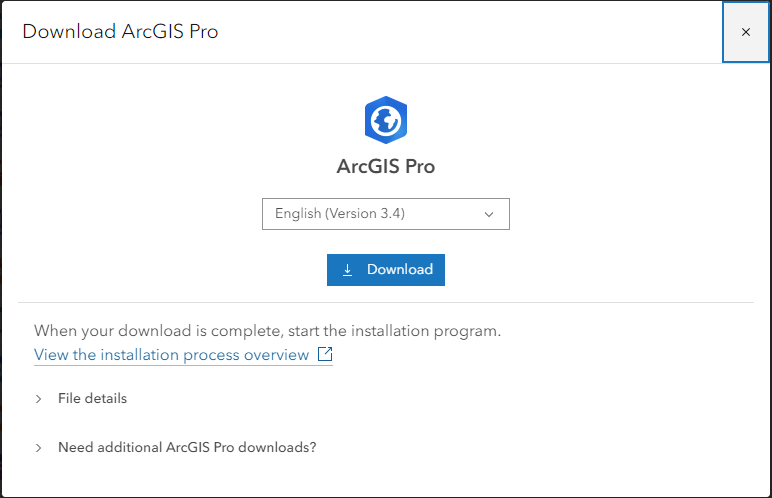
- Ensure version 3.3 (or later) is selected in the desired language and click Download.
- Once downloaded, run the downloaded Application (.exe) file to create the Windows Installer Package (.msi) on disk.
- Install Semantic search using the steps in the following documentation: Install ArcGIS Pro: Modify the setup
Article ID: 000034141
- ArcGIS Pro
Get support with AI
Resolve your issue quickly with the Esri Support AI Chatbot.


Related Information
Discover more on this topic

Search for related information

Find training related to this topic

Explore ideas and give feedback
Get help from ArcGIS experts
Start chatting now