
PROBLEM
Custom IPS configurations are not preserved when a web map is edited and saved in the Map Viewer in ArcGIS Enterprise 11.5
Description
When edits are made and saved in an IPS-aware web map using the Map Viewer in ArcGIS Enterprise 11.5, the custom IPS Configuration settings are not retained and instead revert to the default values. To find what the default values are, refer to the Configure an IPS-aware map documentation.
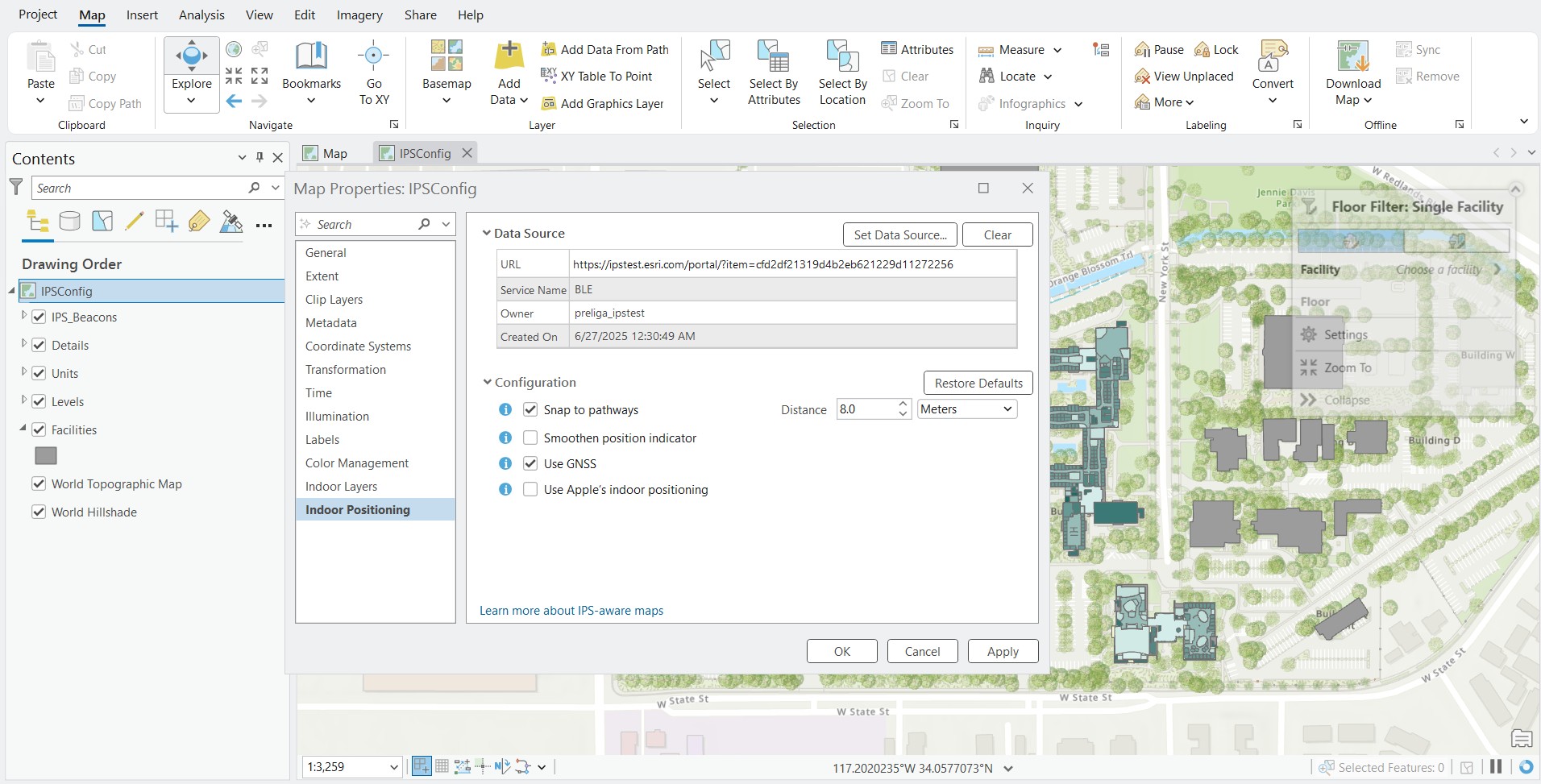
The image below displays the IPS Configuration tab of the web map’s Map Properties in ArcGIS Pro, before making and saving any changes in the Map Viewer. The custom Configuration settings are applied.
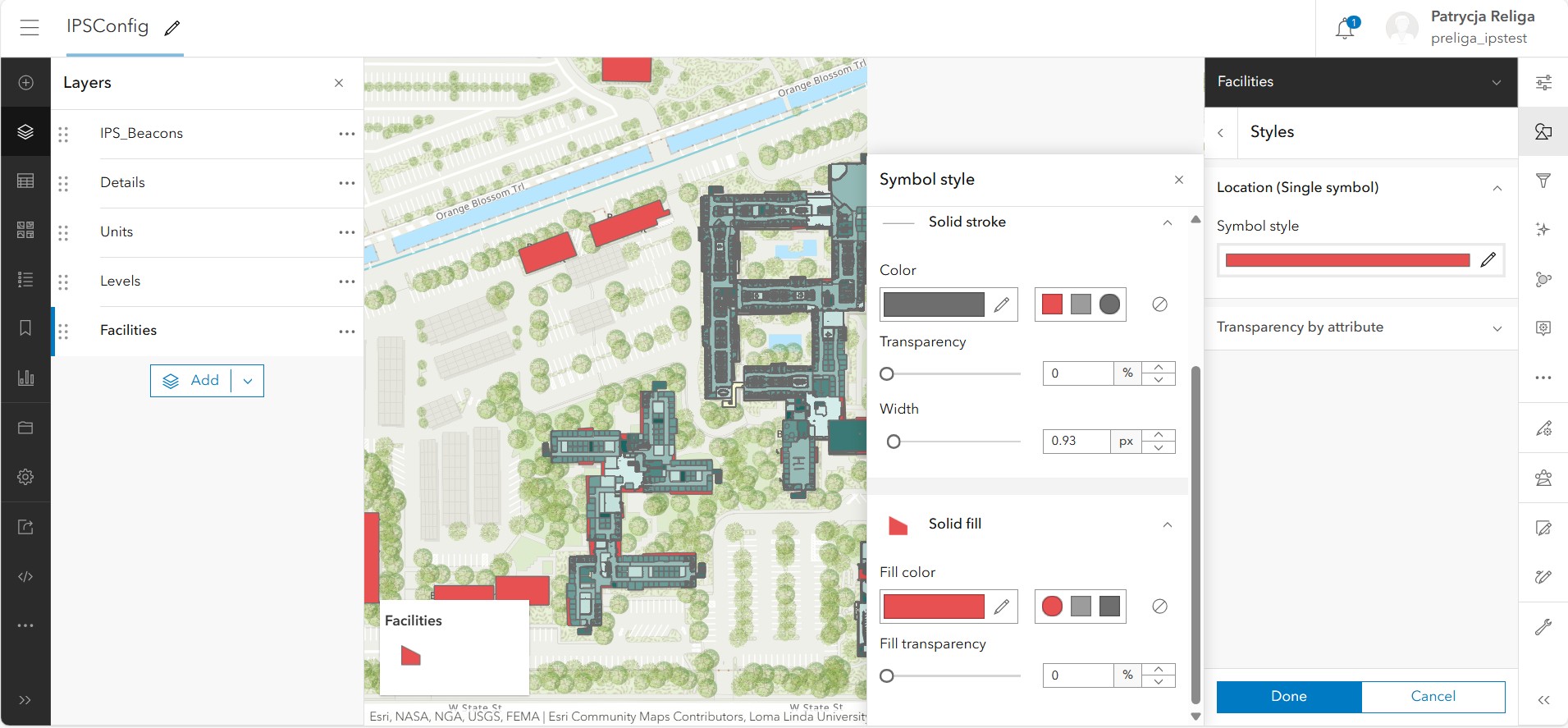
The following image shows an example of modifying the web map in the Map Viewer by applying different symbology to a layer.
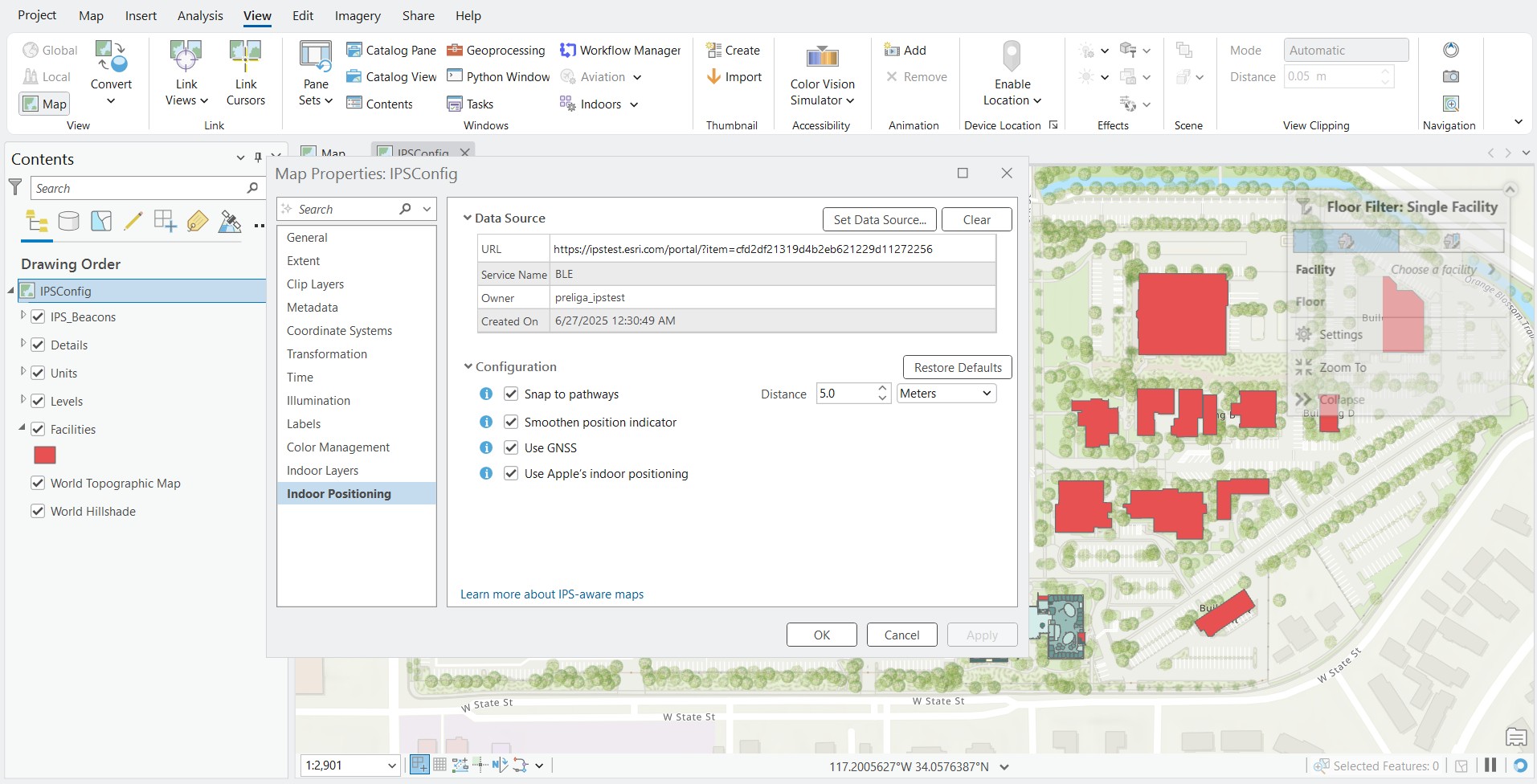
The image below shows the IPS Configuration tab of the web map’s Map Properties in ArcGIS Pro after applying and saving a change in the Map Viewer. Notice that the configuration settings are no longer the same, as they have reverted to the default values.
Note:
IPS Configuration settings in Map Properties are available in ArcGIS Pro 3.4 version and later.
Solution or Workaround
There are two workarounds to preserve custom IPS configuration settings when editing a web map in ArcGIS Enterprise 11.5.
Edit in Map Viewer and reapply settings in ArcGIS Pro
- Open the web map in Map Viewer and make the necessary edits.
- Open the same web map in ArcGIS Pro.
- In the Contents pane, right-click the map and select Properties.
- Go to the Indoor Positioning tab and reapply your custom IPS configuration values.
- Click OK to save the updated settings.
- On the ribbon, on the Share tab, in the Manage group, click Save Web Map.
Edit in Map Viewer Classic
As an alternative, use Map Viewer Classic to make edits while retaining custom IPS configuration settings.
- Open the web map in Map Viewer Classic.
- Make the required edits.
- Save the web map.
Article ID: 000038826
- ArcGIS Enterprise
Get support with AI
Resolve your issue quickly with the Esri Support AI Chatbot.


Discover more on this topic

Search for related information

Find training related to this topic

Explore ideas and give feedback
Get help from ArcGIS experts
Start chatting now