
HOW TO
Create service usage by users reports in ArcGIS Server 11.5
Summary
The service usage by users report, a new ArcGIS Server report, was added with the release of ArcGIS Enterprise 11.5 and is available in the ArcGIS Server Administrator API. This report provides a detailed view of service usage by reporting the number of times a service was accessed by each unique user. This feature gives administrators better visibility into content access within their organization, allowing them to understand usage trends.
Procedure
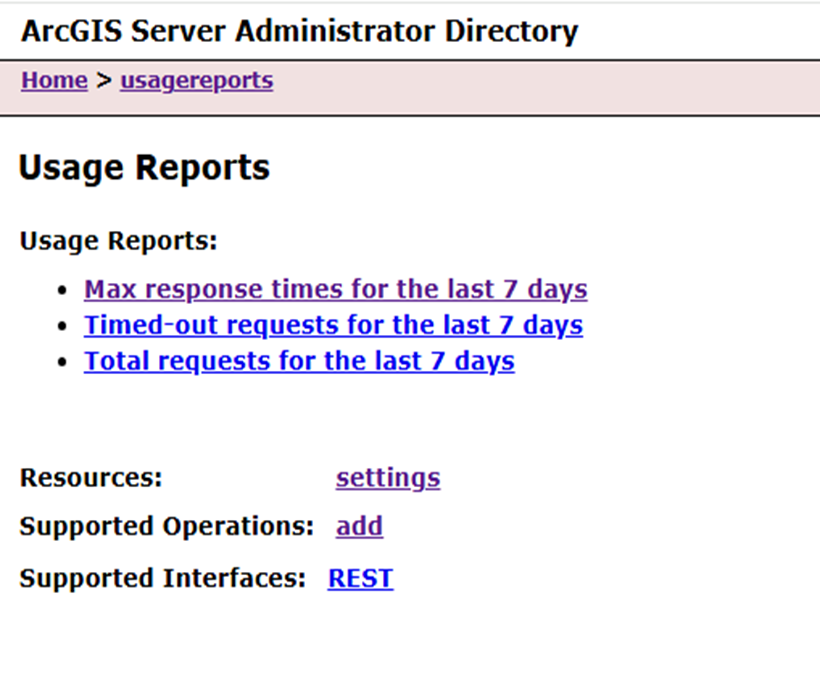
- Navigate to the ArcGIS Server Admin API, and click usagereports. Note that only three reports are available by default, as shown in the next image.
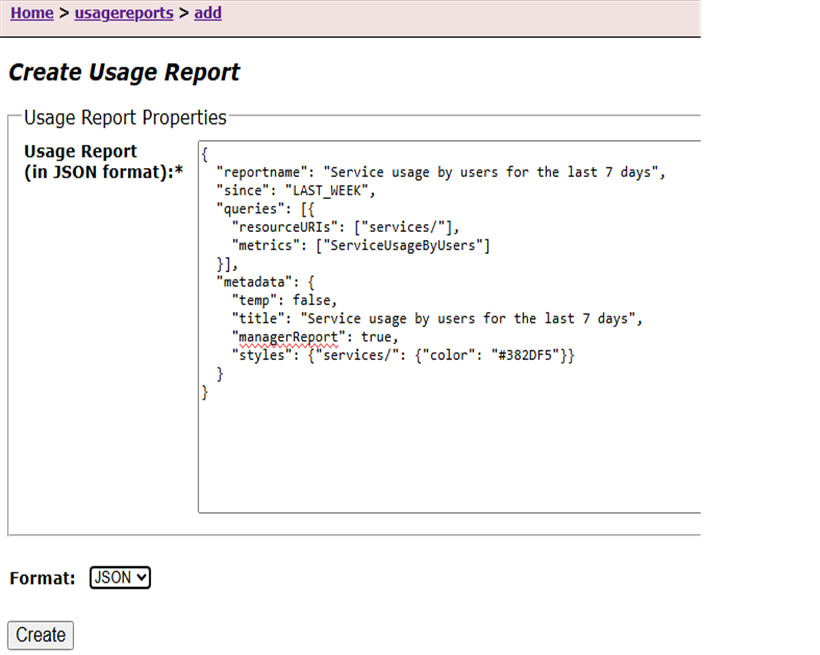
- Click add from the Supported Operations section, paste the below JSON, and execute the operation in the JSON format:
{
  "reportname": "Service usage by users for the last 7 days",
  "since": "LAST_WEEK",
  "queries": [
    {
      "resourceURIs": ["services/"],
      "metrics": ["ServiceUsageByUsers"]
    }
  ],
  "metadata": {
    "temp": false,
    "title": "Service usage by users for the last 7 days",
    "managerReport": true,
    "styles": {
      "services/": {
        "color": "#382DF5"
      }
    }
  }
}
- This returns a success code post execution:
The above JSON creates a report file that shows the data of the users who accessed the service since “LAST_WEEK”. Additionally, the "resourceURIs": ["services/"]” option indicates that the report will be generated across all the services available on the site. We can create this report for a specific service or a folder as well; however, the syntax for them is different. We can even create this report for multiple options using a comma-separated list such as:
"resourceURIs": ["services/SampleWorldCities.MapServer", "services/System"]
- The syntax above only creates a report for the system folder and for the SampleWorldCities map service.
- Similarly, the {managerReport: “true”} syntax in the JSON makes the report created in the Administrator Directory visible to ArcGIS Server Manager.
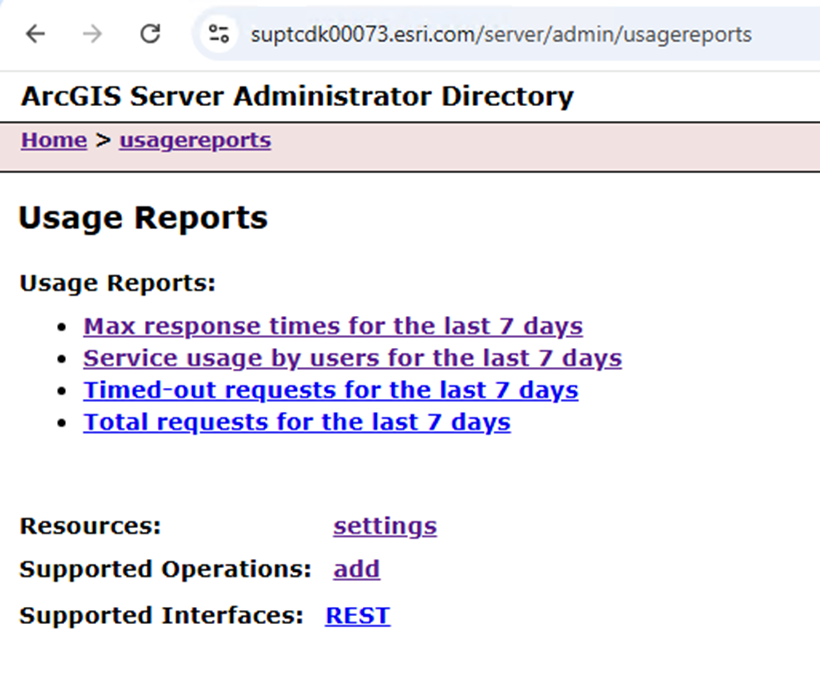
- Navigate back to ArcGIS Server Administrator Directory and click usagereports, The option for Service usage by users for the last 7 days is now visible.
- Click on the report > data, select the machine name, and generate the report. A report for the services is returned as shown in the next image.
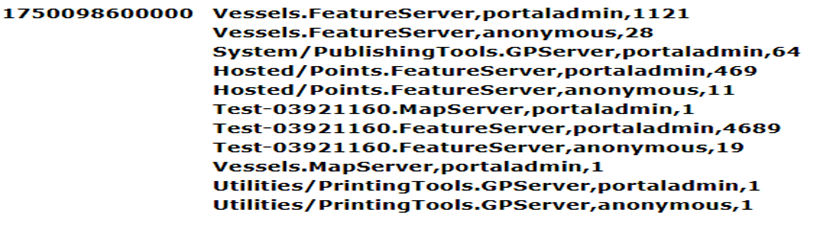
- The above example shows the service name, the user who tried accessing the service, and the count.
- We can create reports for a few other metrics as well. The steps are the same, and the metrics name and the details can be obtained by referring to the create usage report document.
Article ID: 000037241
- ArcGIS Enterprise
Get support with AI
Resolve your issue quickly with the Esri Support AI Chatbot.


Related Information
Discover more on this topic

Search for related information

Find training related to this topic

Explore ideas and give feedback
Get help from ArcGIS experts
Start chatting now