
HOW TO
Create a certificate and enable SAML Encrypted Assertions with ArcGIS and Microsoft Entra ID
Summary
Although Microsoft Entra ID relies on HTTPS/TLS to secure communication and never transmits SAML tokens in the clear, token encryption can still offer an additional layer of security. This knowledge article details how to generate a token-encrypting certificate, enable token encryption in Microsoft Entra ID, and enable Encrypted Assertions in ArcGIS.
Procedure
Before beginning
Create a built-in ArcGIS Enterprise account and make it an Administrator. If Encrypted Assertions are enabled, and either the ArcGIS Enterprise SAML login or Identity Provider are not configured correctly, access to ArcGIS will not be possible. In that case this built-in ArcGIS Enterprise account will allow you to log in to and perform and investigation.
Creating the certificate file
- Connect to ArcGIS Enterprise Portal as an administrator.
- Navigate to Organization > Settings > Security > Logins.
- Click the Configure login hyperlink for your SAML login.
- Click the Show advanced settings hyperlink.
- Enable the Allow Encrypted Assertion item.
- Click the Download service provider metadata hyperlink.
- Save the metadata XML file.
Note:
Do not save the SAML login configuration at this time.  Leave it open for now.
- Create a new file with a text editor such as VS Code.
- Open the metadata XML file with a web browser.
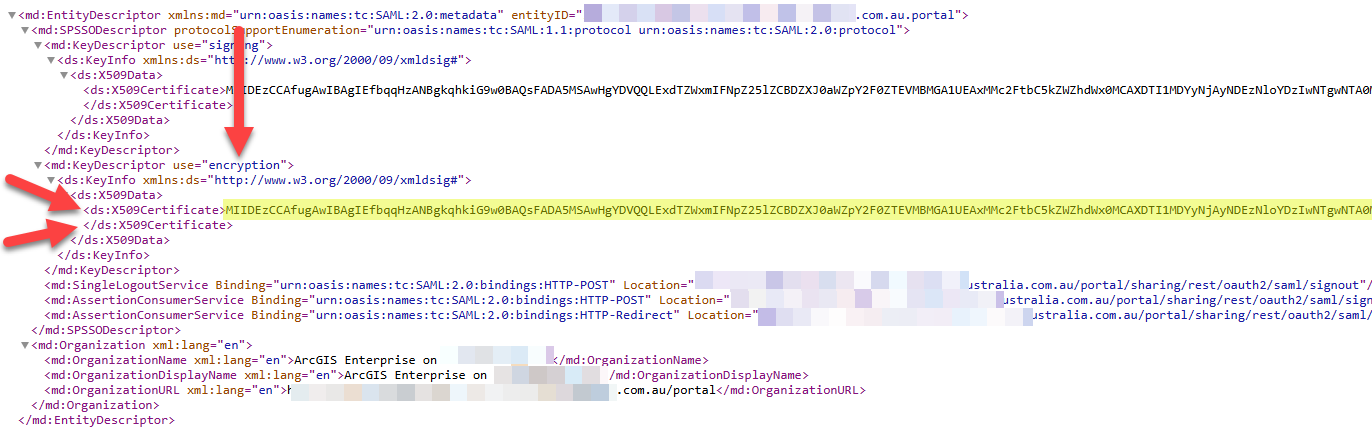
- Locate the Public Key used to encrypt objects.
In the XML document look for an entry such as "KeyDescriptor use="encryption"".
The relevant public key is bounded with these XML tags:
<ds:X509Certificate>
</ds:X509Certificate>
The key has a value similar to the following example:
MIIDEzCCAfugAwIBAgIEfbqqHzANBgkqhkiG9w0BAQsFADA5MSAwHgYDVQQLExdTZWxmIFNpZ25lZCBDZXJ0aWZpY2F0ZTEVMBMGA1UEAxMMc2FtbC5kZ
WZhdWx0MCAXDTI1MDYyNjAyNDEzNloYDzIwNTgwNTA0MDI0MTM2WjA5MSAwHgYDVQQLExdTZWxmIFNpZ25lZCBDZXJ0aWZpY2F0ZTEVMBMGA1UEAx
MMc2FtbC5kZWZhdWx0MIIBIjANBgkqhkiG9w0BAQEFAAOCAQ8AMIIBCgKCAQEAnVqEkDz8r0qiP1MKPsVHPrenUE4oRWTmBzIftEH5rz26WfeLxwXLlYMBWs
2O5NAGcfyGxKnB0xAGGV3GbXIIc6XA/lkmPxHWq+znSfmf5OeVxvIu0X585xK+f6JKXxWAs5sTeMIKQpO8pImx6MvPMPZKSJt3N+zz1FRXlZ8zoQnvuxhosA1E
XZ02jgM62dTAUaYZLnF9qMmi+LkHS1Y2eQHYKUM1ze4dSLXz8CuzGSq6zOJAVblzXJpeZGUC+gZREZm8TW2QFkRGKIeF4/MnIqOZQIDAQABoyEwHzAdBgN
VHQ4EFgQU5E3ZLYmk2TEQxKD462MH2HiJKyAwDQYJKoZIhvcNAQELBQADggEBAD0raNULrl3I6Eodbl9L1H32smZjUFvlxH/J/9xbhZns7OcC5xc71nsFPNFmwj
tbx2OtDuC1pz6xo/qqpaqd6p6z96TZ+wBiPv7CSQCAvjt0u4jiZsWYx3PXsBgUbxkrG1GGcsA+FRCt2sDHce4n4VUBS/v2XYPQntoXuoO6UjnZQjdRm6Wn0yKo2
9xRmnekDeMPE3Pi//zHBsNoV1o4X1HDbSFToWZ6dvYgONMSdUT6JVlcg7Zp5NJAPbRRP9l5rbM/kvUeTk0ueUWXDcKFsmK47FVu/ECJR0EiwhuMJT3fSYfk5s/t
0DK7Xgf6dcpSGrgvOXgG4UvyLIqSmlriswA=
- Copy the key to the text file created at Step 8, above.
- Save the file with the extension .cer.
Inspecting the key
Check the validity of the key/certificate by inspecting it with Windows Crypto Shell Extensions.
- Log in to Azure portal.
- Navigate to Microsoft Entra ID > Enterprise Applications > applicationName > Security > Token encryption.
- Click Import Certificate.
- Locate the .cer file from Step 12, above.
- Click Add.
- The status of the certificate will display Inactive.
- Activate the context menu (three horizontal dots) for the certificate and choose Activate token encryption certificate.
- The status of the certificate will display Active.
- Navigate back to ArcGIS Enterprise and save the SAML login.
Testing the SAML login
Log out and test the SAML login. If any problem is encountered, follow these steps:
- Log in to ArcGIS Enterprise portal with the built-in administrator account.
- Disable the Allow Encrypted Assertion item for the SAML login.
- Navigate to Microsoft Entra ID > Enterprise Applications > applicationName > Security > Token encryption in Azure Portal.
- Inactivate the SAML token encryption certificate.
Article ID: 000036839
- ArcGIS Enterprise
Get support with AI
Resolve your issue quickly with the Esri Support AI Chatbot.


Discover more on this topic

Search for related information

Find training related to this topic

Explore ideas and give feedback
Get help from ArcGIS experts
Start chatting now