
PROBLEM
Cannot add two related tables in Map Viewer pop-ups using Arcade expression in ArcGIS Online
Description
In ArcGIS Online Map Viewer you can create pop-ups and include a related table of the hosted feature layer using an Arcade expression. However, you cannot add two related or multiple tables in a pop-up using an Arcade expression.
Cause
There are multiple limitations in ArcGIS Online:
- Arcade in pop-ups only supports querying one related table per expression. Attempting to access a second related table either fails or returns empty results.
- Limited formatting capabilities: Displaying multiple related records in a structured format (such as a table) is not natively supported
Solution or Workaround
While ArcGIS Online Map Viewer currently limits pop-up configuration to only one related table, an effective alternative workflow is available using ArcGIS Pro.
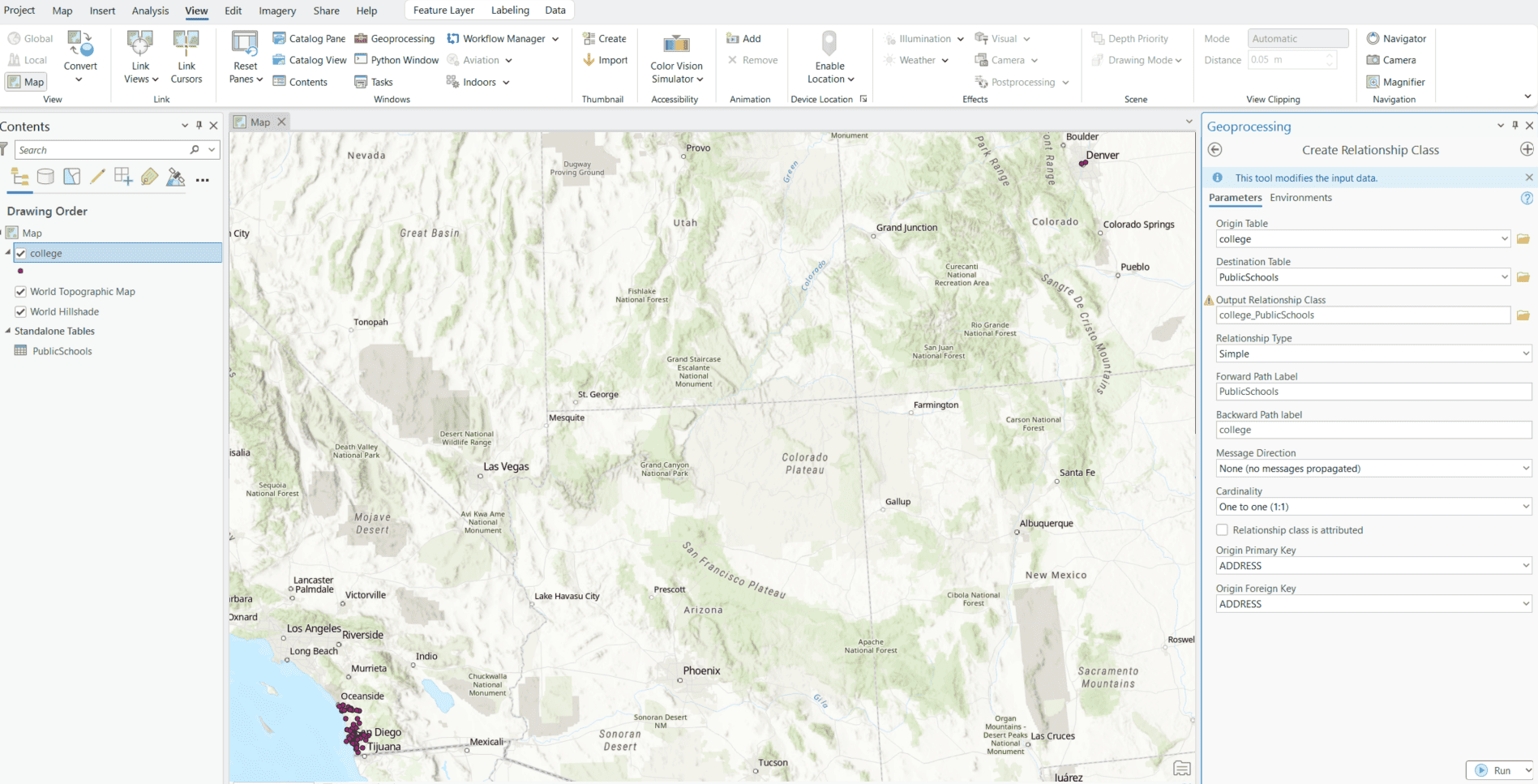
- Create Relationship Classes
Use the Create Relationship Class geoprocessing tool to define relationships between your root feature layer and each related table:- Input the Origin Table (root) and the (related) Destination Table.
- Choose a Relationship Type.
- Name the Output Relationship Class.
- Click Run.
- Configure the pop-ups in ArcGIS Pro.
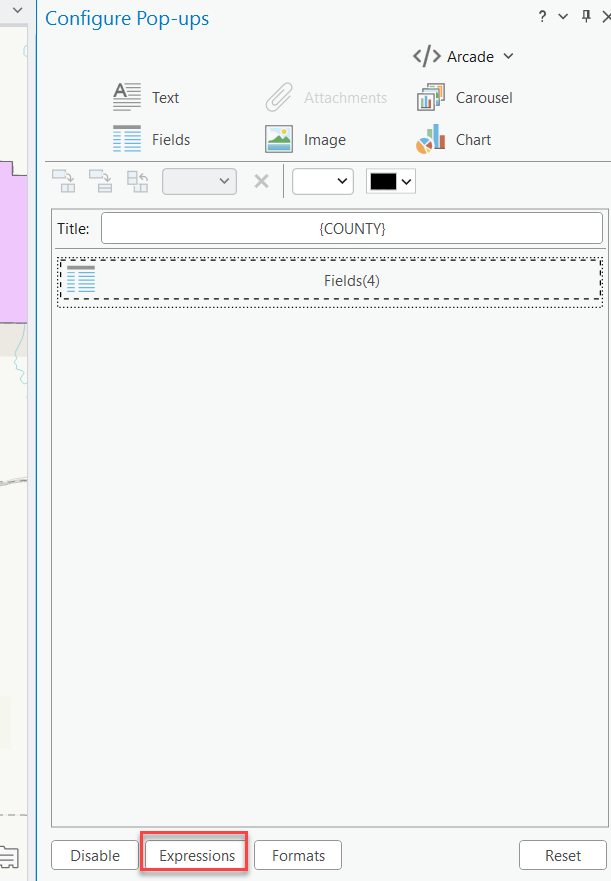
- In the Contents pane, right-click the layer and click Configure Pop-ups.
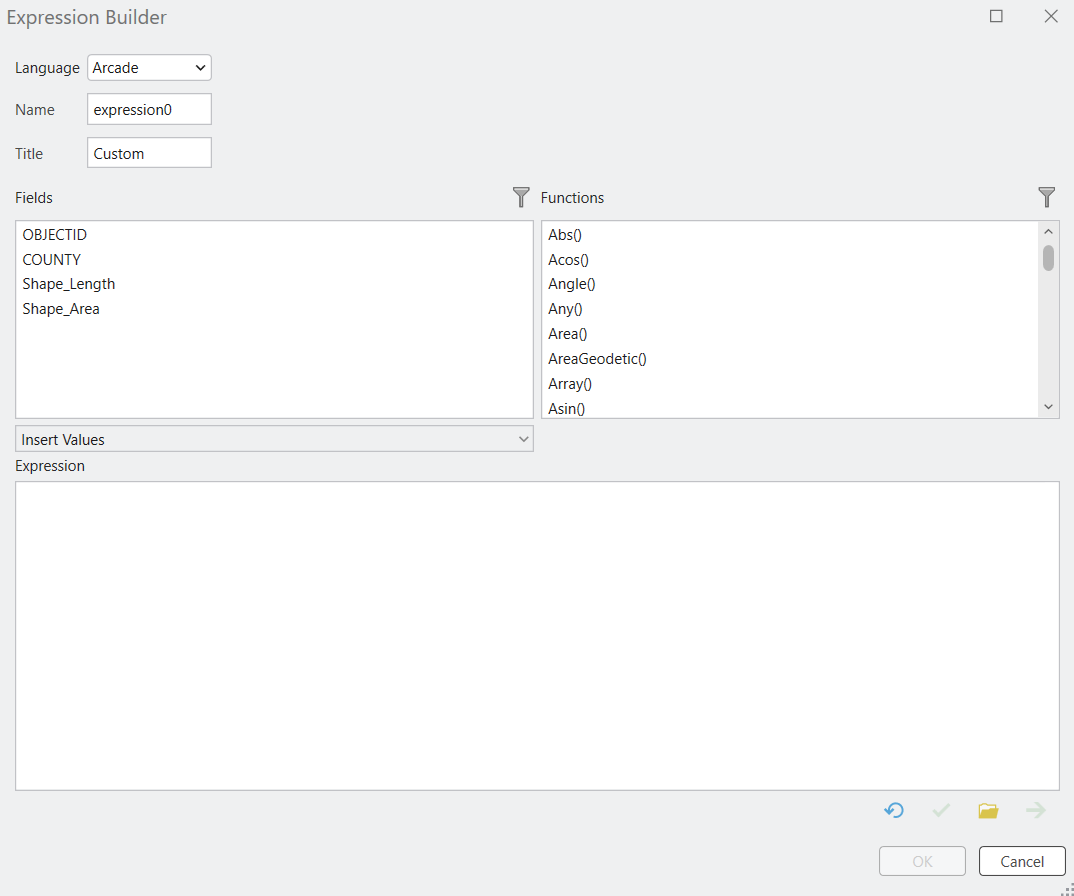
- In the Configure Pop-ups pane, click the Expression button, and click New to open the Arcade Expression Builder.
- Use Arcade expressions as in the example provided below to retrieve and format data from multiple related tables.
Code example:
// Get related records from Dataset A
var datasetARecords = FeatureSetByRelationshipName($feature, "Relationship_A");
// Get related records from Dataset B
var datasetBRecords = FeatureSetByRelationshipName($feature, "Relationship_B");
// Initialize a string to hold the output HTML
var result = "<h3>Debug Information:</h3>";
// Debug: Check if datasetARecords is null
if (IsEmpty(datasetARecords)) {
  result += "<p>Error: Dataset A records are empty or null.</p>";
} else {
  result += "<p>Dataset A records count: " + Count(datasetARecords) + "</p>";
}
// Debug: Check if datasetBRecords is null
if (IsEmpty(datasetBRecords)) {
  result += "<p>Error: Dataset B records are empty or null.</p>";
} else {
  result += "<p>Dataset B records count: " + Count(datasetBRecords) + "</p>";
}
// Initialize output HTML for Dataset A
result += "<h3>Dataset A Information:</h3><table border='1'><tr><th>Field 1</th><th>Field 2</th><th>Field 3</th><th>Field 4</th></tr>";
// Check if datasetARecords has data
if (Count(datasetARecords) > 0) {
  // Loop through related records in Dataset A
  for (var recordA in datasetARecords) {
    var attributes = datasetARecords[recordA];
    result += "<tr><td>" + attributes.FIELD1 + "</td><td>" + attributes.FIELD2 + "</td><td>" + attributes.FIELD3 + "</td><td>" + attributes.FIELD4 + "</td></tr>";
  }
} else {
  result += "<tr><td colspan='4'>No related records found.</td></tr>";
}
result += "</table>";
// Add Dataset B related data to the result
result += "<h3>Dataset B Information:</h3><table border='1'><tr><th>Field A</th><th>Field B</th><th>Field C</th><th>Field D</th></tr>";
// Check if datasetBRecords has data
if (Count(datasetBRecords) > 0) {
  // Loop through related records in Dataset B
  for (var recordB in datasetBRecords) {
    var attributes = datasetBRecords[recordB];
    result += "<tr><td>" + attributes.FIELDA + "</td><td>" + attributes.FIELDB + "</td><td>" + attributes.FIELDC + "</td><td>" + attributes.FIELDD + "</td></tr>";
  }
} else {
  result += "<tr><td colspan='4'>No related records found.</td></tr>";
}
result += "</table>";
// Return the final result
return result;
- Once the pop-ups are configured in ArcGIS Pro, publish the map or layer as a web layer to ArcGIS Online. The pop-up configuration is retained in the hosted feature layer.
Article ID: 000037323
- ArcGIS Pro
- ArcGIS Online
Get support with AI
Resolve your issue quickly with the Esri Support AI Chatbot.


Related Information
Discover more on this topic

Search for related information

Find training related to this topic

Explore ideas and give feedback
Get help from ArcGIS experts
Start chatting now