
ERROR
The number of licenses assigned to users exceeds the number of licenses available in your organization
Error Message
When attempting to sign in to ArcGIS Pro, users may receive the following error message:
The number of licenses assigned to users exceeds the number of licenses available in your organization. Please contact your administrator to reconfigure your organization’s licenses.
This error prevents the user from accessing ArcGIS Pro and may be related to license configuration, assignment, or environment-level issues.
Cause
There are several causes for this error:
- The user does not have valid licenses assigned.
- Expired add-on licenses or user types are still assigned to the user account.
- ArcGIS Pro’s licensing configuration is incorrect (wrong license type or Portal URL).
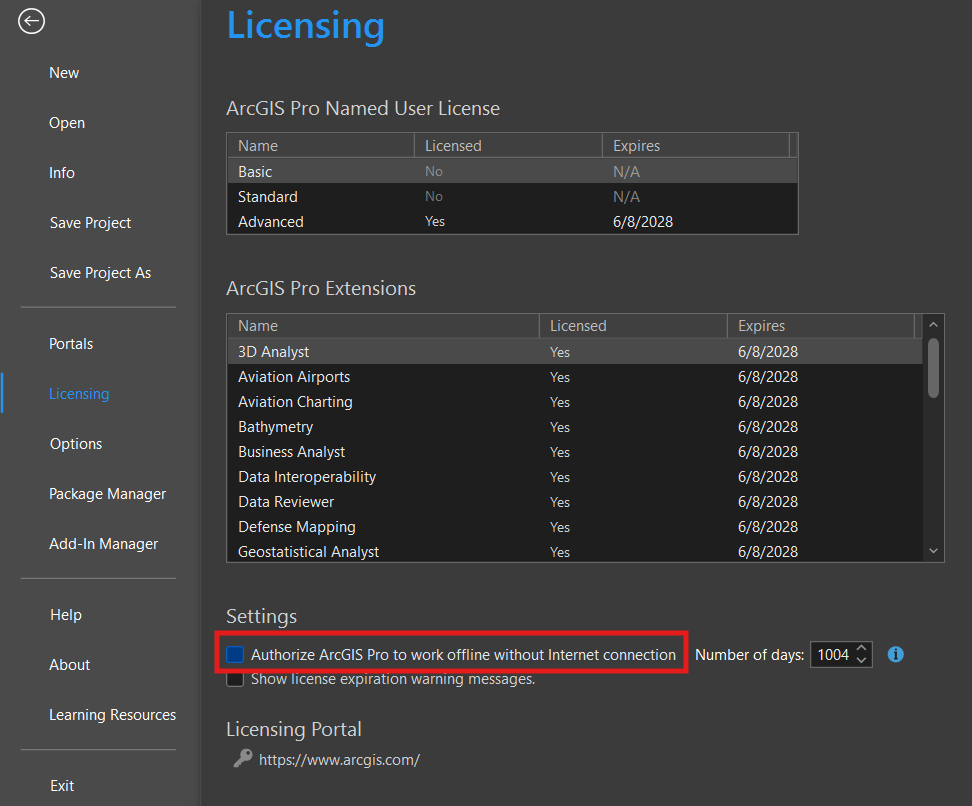
- The user previously set ArcGIS Pro to work offline on another machine, and the license was not returned.
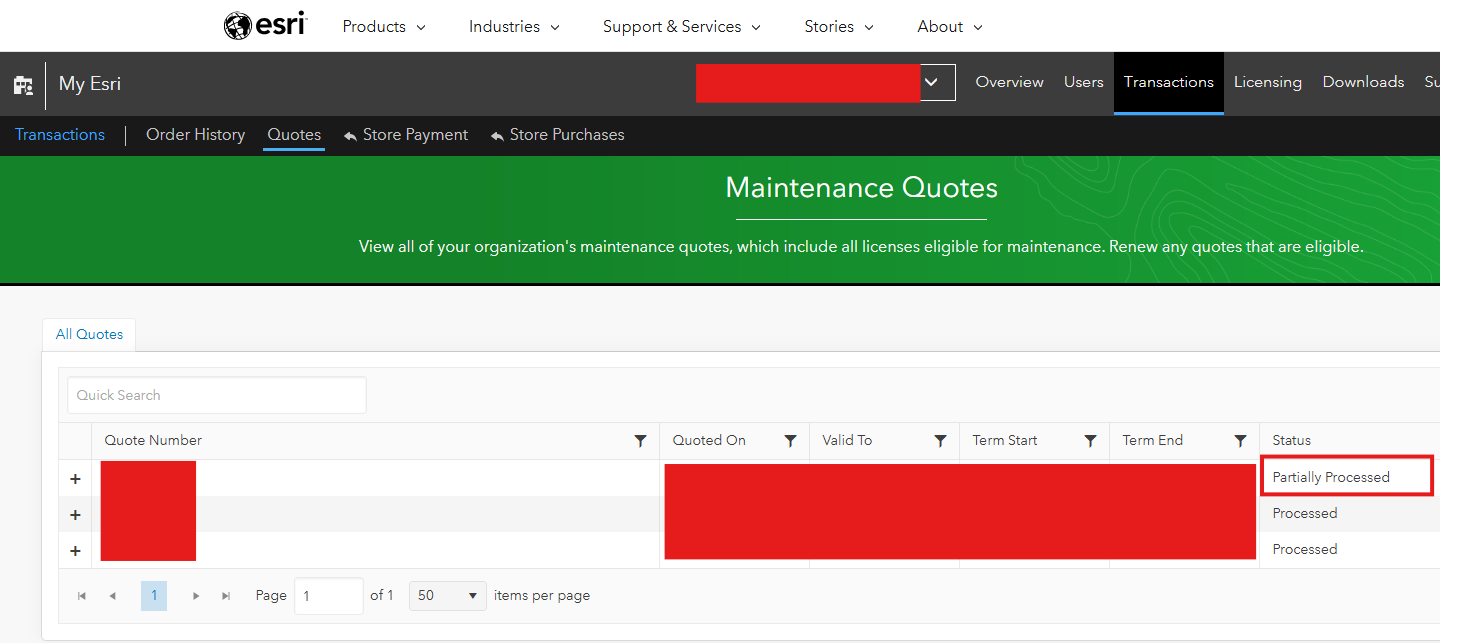
- Licensing-related quotes in My Esri are Unprocessed or Partially Processed.
- Environment-specific issues, for example, machine-level problems.
Solution or Workaround
To resolve this error, following methods can be tried:
Verify if ArcGIS Online URL access is accessible
- Confirm the user is an ArcGIS Online organization administrator.
- Check if they can log in successfully to ArcGIS Online in a web browser.
- Verify if the same error appears when logging in directly to ArcGIS Online.
Reset license assignments
- Unassign any expired user types or add-on licenses in ArcGIS Online while ArcGIS Pro is closed.
- Refresh the ArcGIS Online page.
- Reassign the correct and available licenses.
- Try signing in to ArcGIS Pro again.
Check ArcGIS Pro licensing configuration
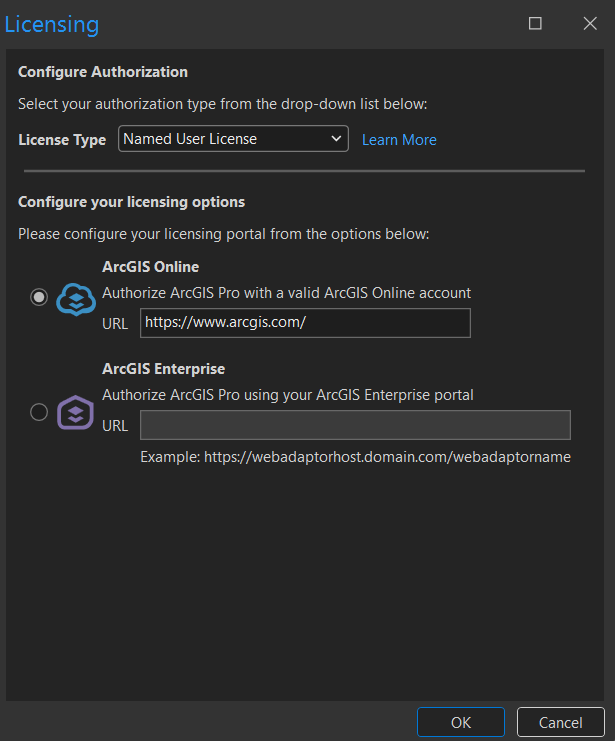
- In the ArcGIS Pro sign-in pop-up, click Configure Licensing.
- Ensure the License Type is set to Named User License.
- Confirm the portal URL is set to:
https://www.arcgis.com/
Check for offline licensing
- If the user has previously enabled ArcGIS Pro to work offline on another machine, the license must first be returned in that machine before signing in on a new machine.
Check My Esri quote status
- In some cases, quotes may appear as Unprocessed or Partially Processed, as shown in the next image.
- Confirm with the Customer Service Representative or Account Owner that the purchase is fully processed and no issues remain.
Test on another machine
- If the user has ArcGIS Pro installed on another machine, check by signing in with the same account in another machine.
- If the same account works on another machine, the problem may be machine-specific.
Article ID: 000037978
Software:
- ArcGIS Pro
Get support with AI
Resolve your issue quickly with the Esri Support AI Chatbot.


Discover more on this topic

Search for related information

Find training related to this topic

Explore ideas and give feedback
Get help from ArcGIS experts
Start chatting now