
PROBLEM
ArcGIS Pro crashes on launch after installing Add-In
Description
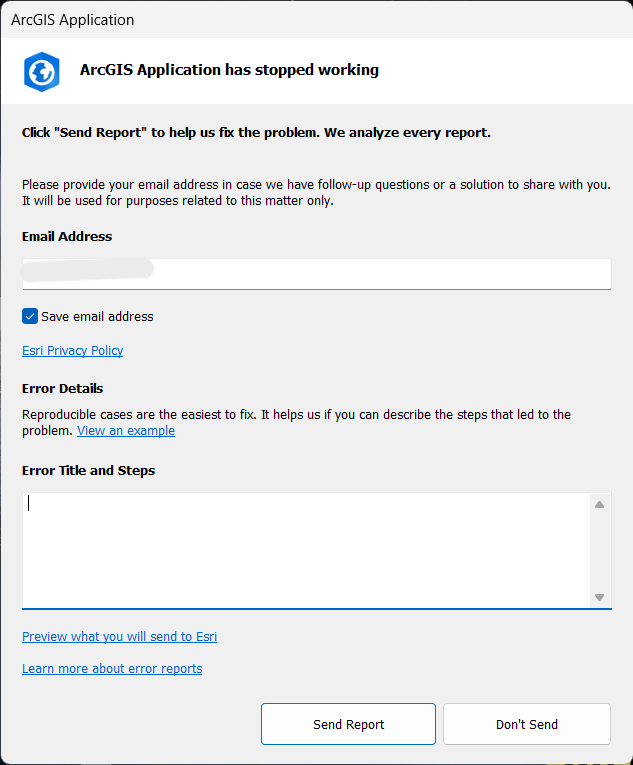
After the installation of an ArcGIS Pro add-In, launching ArcGIS Pro fails and the following message is displayed, as shown in the image below.
ArcGIS Application has stopped working
Click "Send Report" to help us fix the problem.
Cause
The installed add-in is incompatible with the version of ArcGIS Pro.
Solution or Workaround
- Open the command prompt and run the following command:
<ArcGIS Pro installation directory>\bin\ArcGISPro.exe /disableaddins
-
- Note that the default ArcGIS Pro installation directory is: "C:\Program Files\ArcGIS\Pro"
- This command launches this particular instance of ArcGIS Pro while disabling all the add-ins.
- Open ArcGIS Pro, it should now open without issue.
To rectify this, follow either the workaround below or proceed with the solution.
Workaround
In the scenario where there are no external add-ins:
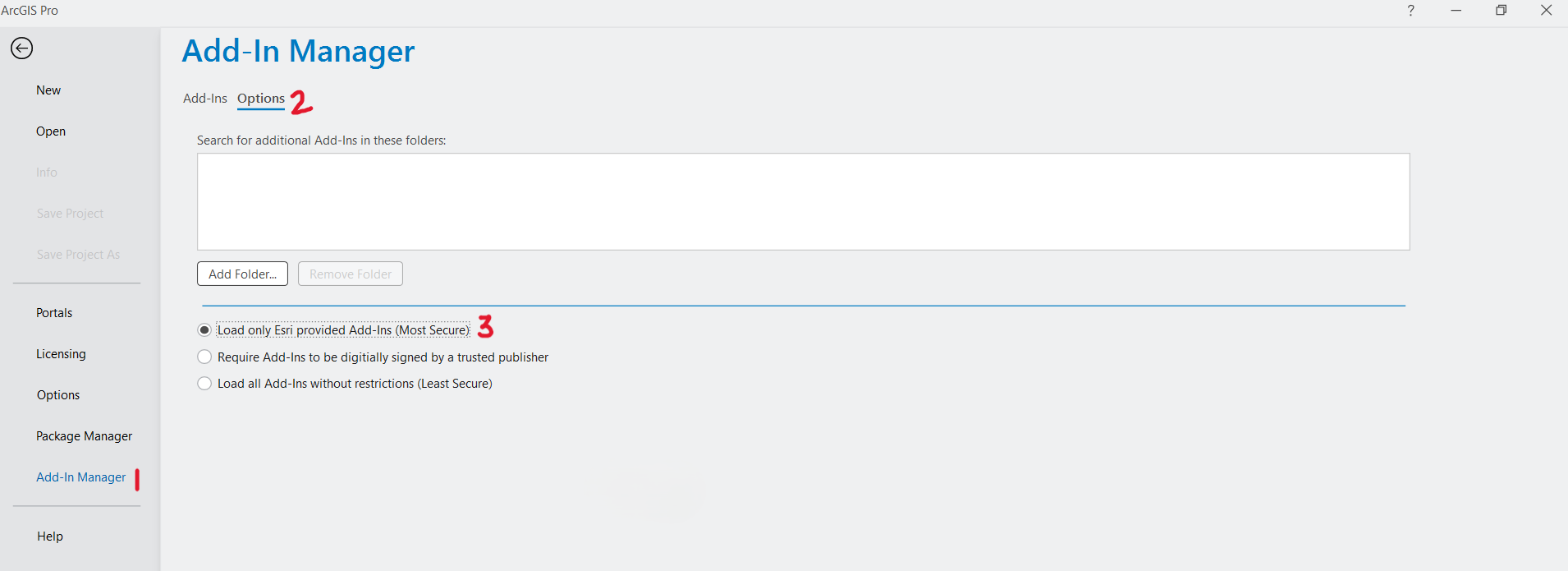
- Launch ArcGIS Pro and navigate to Settings > Add-In Manager > Options.
- Select Load only Esri provided Add-Ins (Most Secure).
- Close the application and re-launch it.
- ArcGIS Pro should now open without issue.
Solution
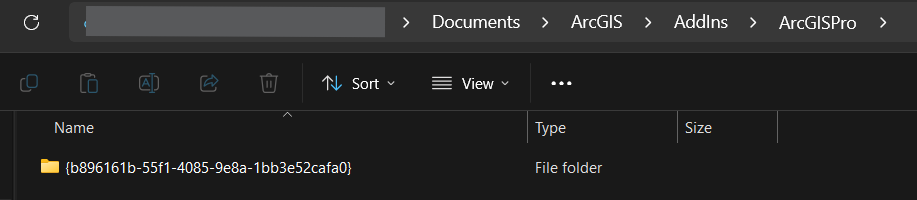
- In Windows File Explorer, navigate to <System Drive>\Users\<user>\Documents\ArcGIS\AddIns\ArcGISPro (Default system drive is C:)
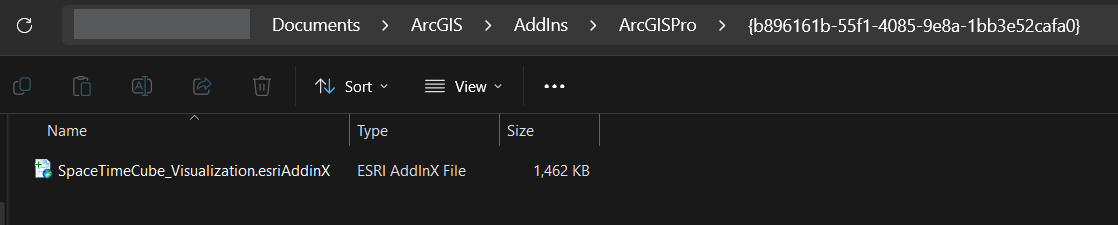
- All the installed add-in's directories are listed with their Globally Unique Identifier (GUID) as the folder name. Inside each folder, the add-ins are present as an ESRI AddInX File Type (.esriAddinX) with their names, as shown in the following images.
- Identify the add-in whose installation caused the problem and delete the folder.
- ArcGIS Pro should now launch without issue.
Article ID: 000036367
Software:
- ArcGIS Pro
Get support with AI
Resolve your issue quickly with the Esri Support AI Chatbot.


Related Information
Discover more on this topic

Search for related information

Find training related to this topic

Explore ideas and give feedback
Get help from ArcGIS experts
Start chatting now