
HOW TO
Add a Google Maps link in the pop-up window in ArcGIS Enterprise
Summary
The aim of this article is to provide a workflow to add a Google Maps link in the pop-up window of an ArcGIS Enterprise feature service.
Procedure
Data configuration
- In ArcGIS Pro, create a new point feature class in an enterprise geodatabase, containing at least three fields: Latitude, Longitude, and URL. Add GlobalIDs to this feature class.
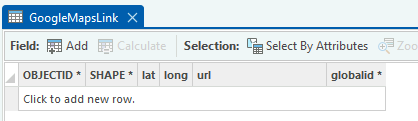
- Add a calculation attribute rule to create the Google Maps URL in the URL field from the Latitude and Longitude fields, using the following expression:
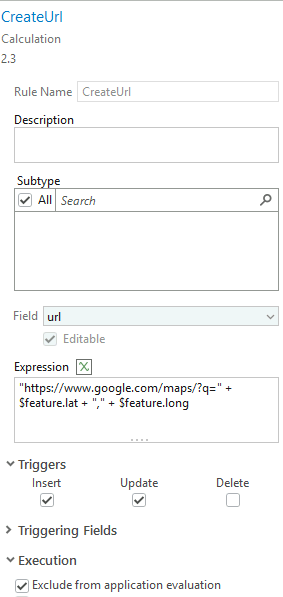
"https://www.google.com/maps/?q=" + $feature.lat + "," + $feature.long
- Add a name for the rule, select the Field to calculate "url", add the expression, under Triggers, select Insert and Update, and under Triggering Fields, select Exclude from application evaluation, as shown in the next image.
- Publish this feature class as feature layer in ArcGIS Enterprise.
Webmap creation
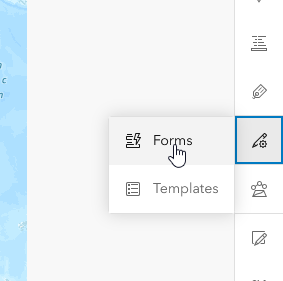
- In the new Map Viewer, add the published service and create a form that will contain the Arcade code to retrieve the coordinates of the points.
- Add both fields Latitude and Longitude to compute in the form.
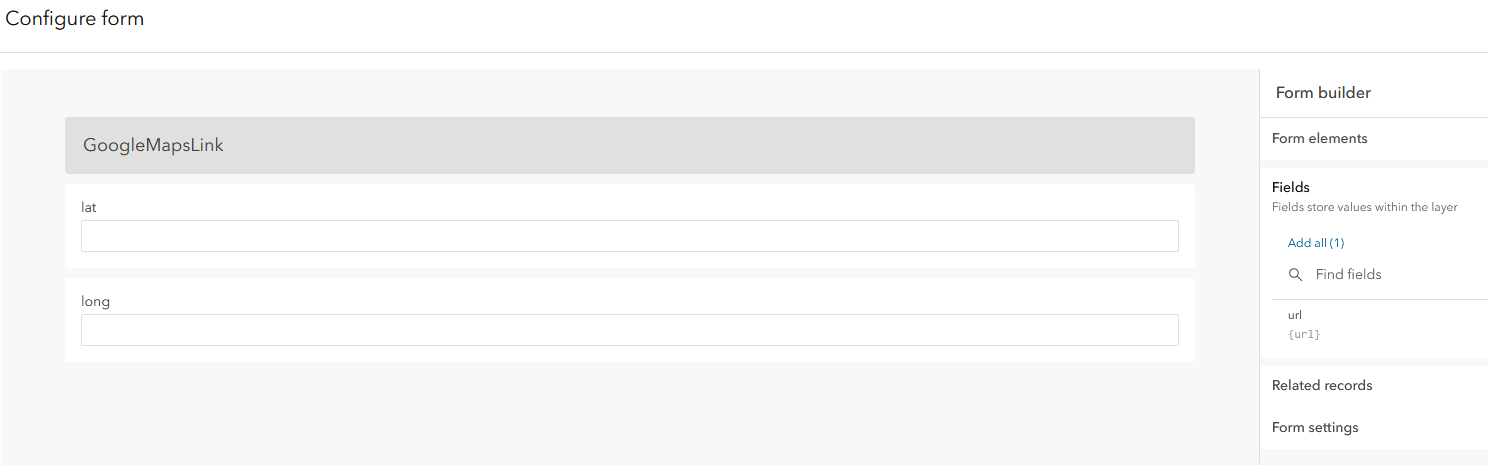
- For each field, add a calculated expression :
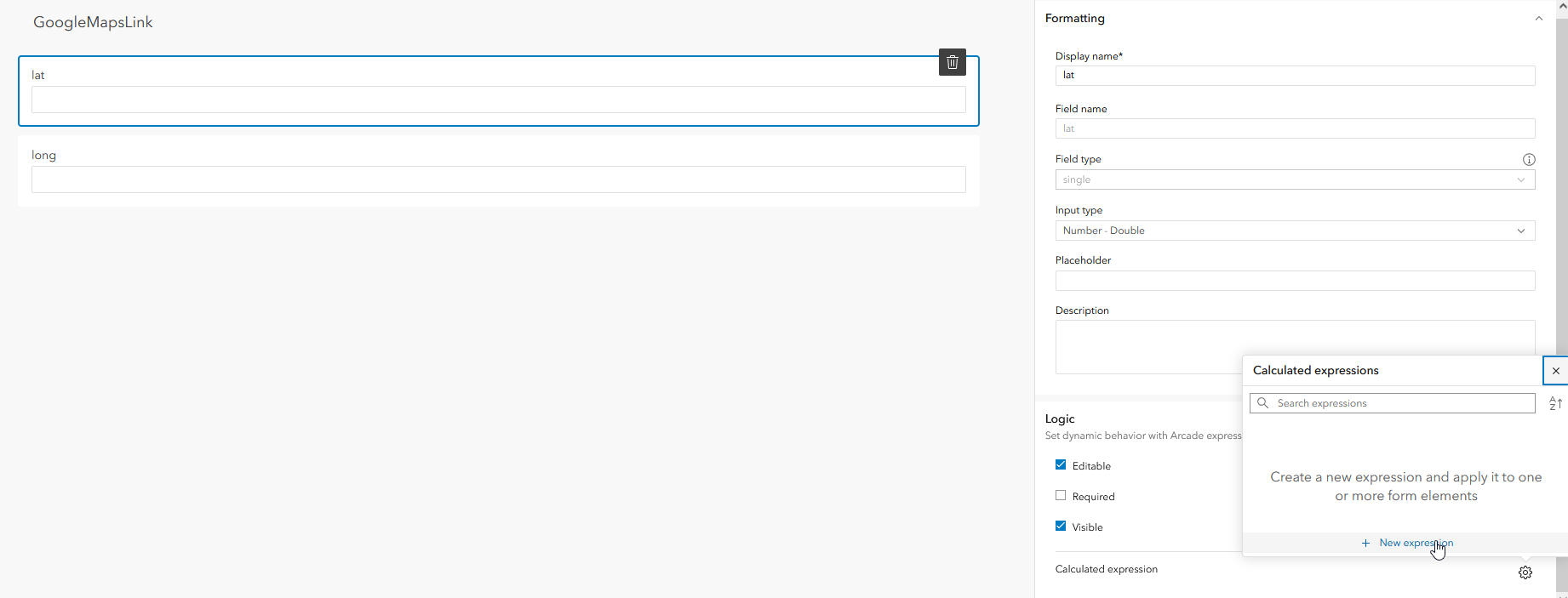
The expression for the Latitude :
// The expression below if only applicable if the basemap is using the Web Mercator projection.
// Create a function to convert meters to lat
// Source: http://www.maptiler.org/google-maps-coordinates-tile-bounds-projection/
function MetersToLatLon(geom) {
    if (IsEmpty(geom)) {
        return null
    }
    var originShift = 2.0 * PI * 6378137.0 / 2.0
    var lat = (geom.y / originShift) * 180.0
    lat = 180.0 / PI * (2.0 * Atan( Exp( lat * PI / 180.0)) - PI / 2.0)
    return Round(lat, 6)
}
// Call the function and return the latitude
MetersToLatLon(Geometry($feature))
The expression for the Longitude :
// The expression below if only applicable if the basemap is using the Web Mercator projection.
// Create a function to convert meters to long
// Source: http://www.maptiler.org/google-maps-coordinates-tile-bounds-projection/
function MetersToLatLon(geom) {
    if (IsEmpty(geom)) {
        return null
    }
    var originShift = 2.0 * PI * 6378137.0 / 2.0
    var lon = (geom.x / originShift) * 180.0
    return Round(lon, 6)
}
// Call the function and return the longitude
MetersToLatLon(Geometry($feature))
Note:
As stated as comments in the expressions, thees expressions are only applicable if the basemap used when creating the features is using the Web Mercator projection. However it does not depend on the feature service coordinate system.
Results
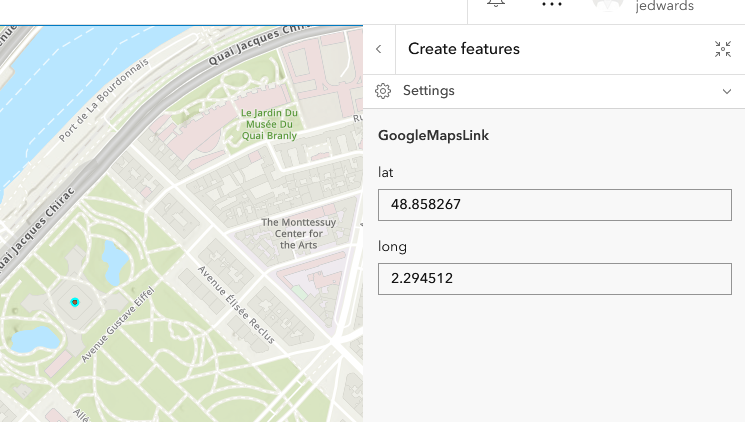
- Now when creating new features, the lat and long fields are calculated, as shown in the next image:
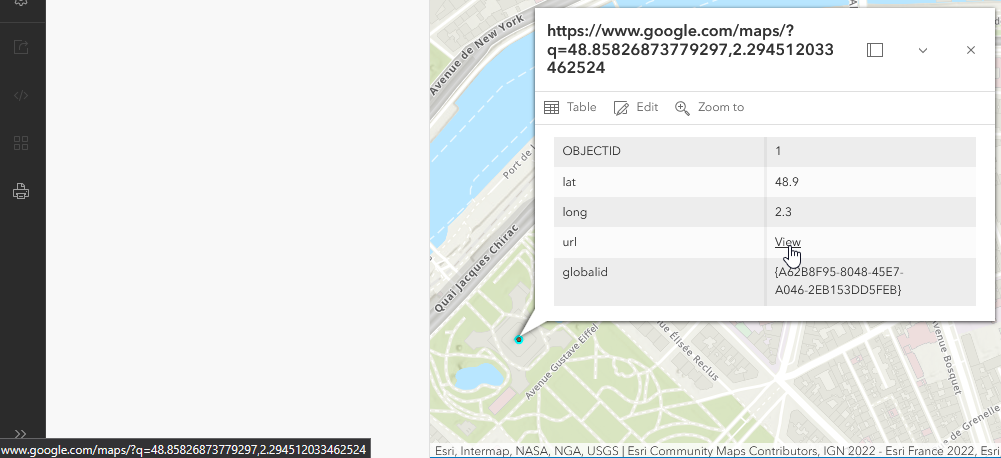
- And the pop-up shows the url calculated, shown below:
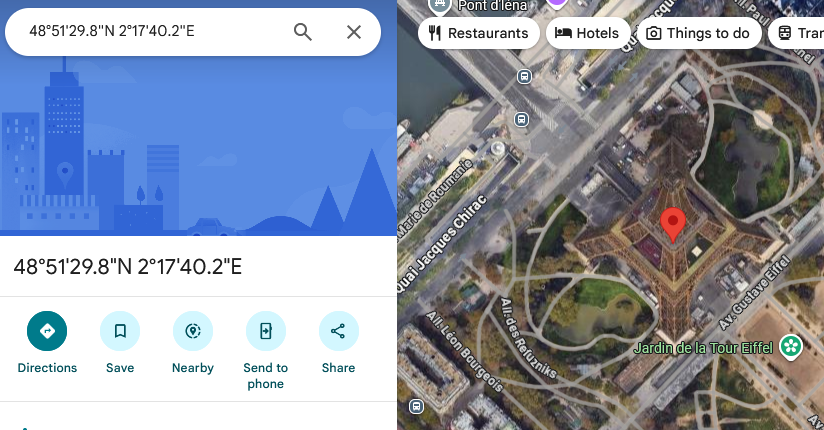
- The link allows the user to go directly on Google Maps, with a pin on the feature's location, as shown in the final image:
Article ID: 000038099
Software:
- Enterprise
Get support with AI
Resolve your issue quickly with the Esri Support AI Chatbot.


Discover more on this topic

Search for related information

Find training related to this topic

Explore ideas and give feedback
Get help from ArcGIS experts
Start chatting now